Write and edit text
By the end of this guide you can put Arabic text on the page and edit it at whatever level you need: the whole layer, one word, one letter, or a single part of a letter.
Add new text
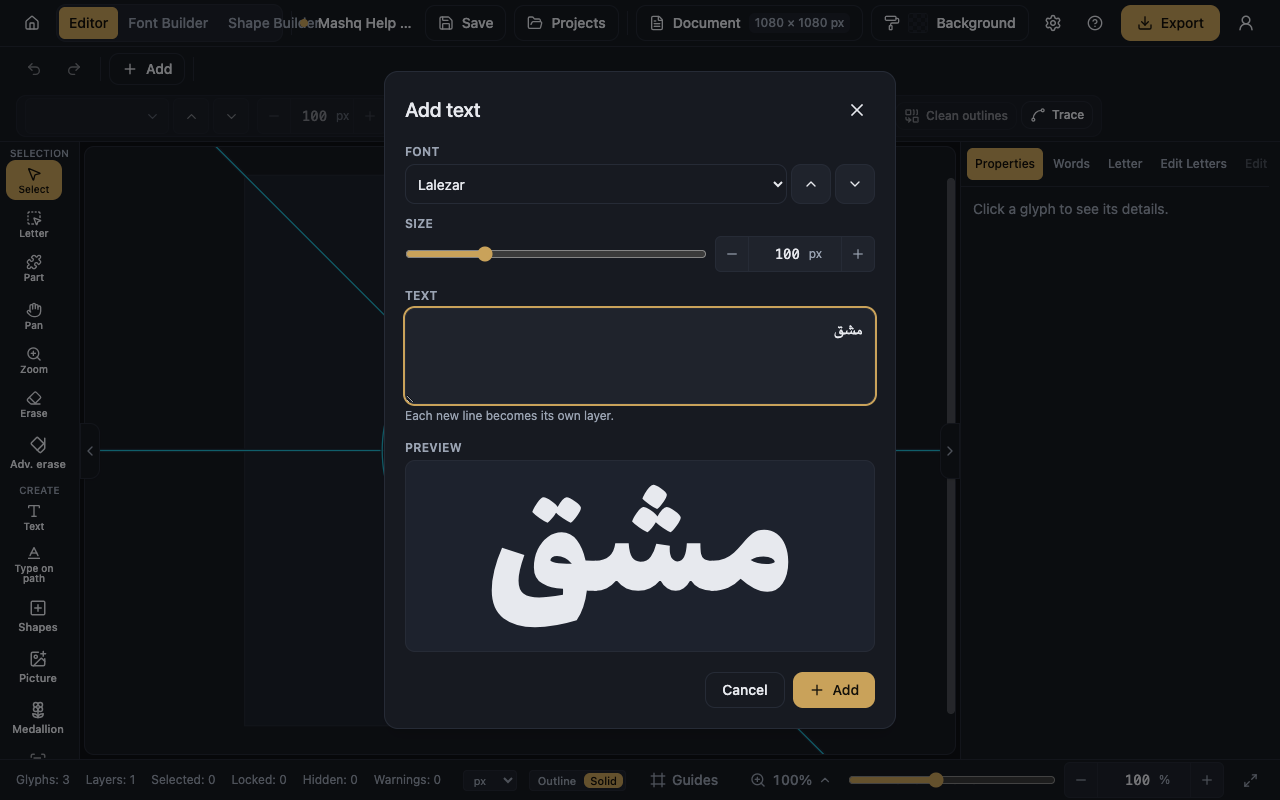
The Add text dialog opens every time you add text. It holds the Text field, the Font, the Size, and a live preview of the result.
Each new line you type becomes its own layer, so if you want three lines that move independently, type them as three lines.
A line that is too wide for the page wraps automatically, in the preview and again when it lands on the canvas, and it lands centered on the page. A very long paste shows only up to a safe length in the preview, with a counter under it, but the canvas still receives all of it.
- Pick the Text tool from the tool rail, or press T.
- Double-click an empty part of the canvas.
- Type your word or sentence in the Text field.
- Choose the Font and the Size, and watch the preview.
- Press Add.
Edit text you already placed
To change only the font or the size you do not need the dialog. Select the layer and use Font pack and Font size in the options bar. The size is shown in px with a pt readout beside it.
- Pick the Select tool.
- Double-click the text on the canvas.
- The Edit text dialog opens with your current text. Change it.
- Press Save.
Choose what you are editing
The Select tool works on the whole layer: move it, resize it, rotate it.
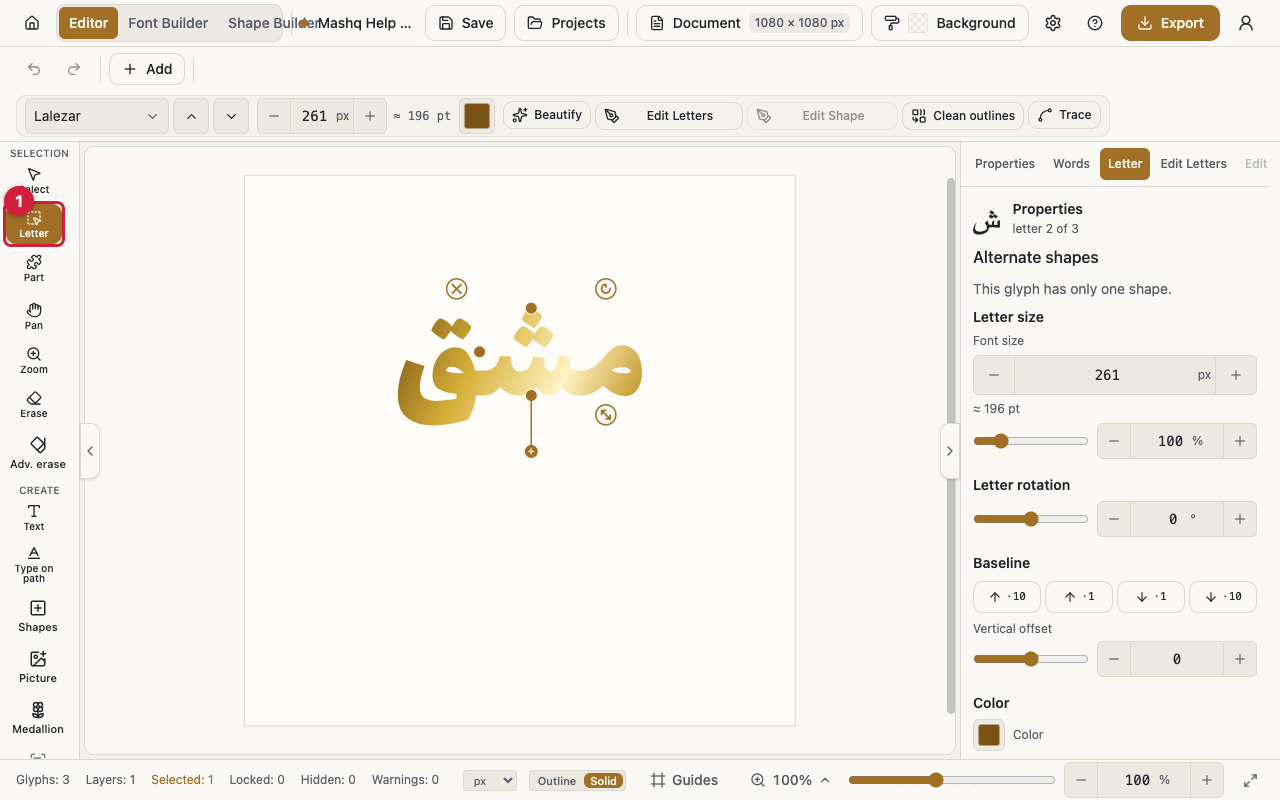
The Letter tool picks a letter or a word inside the layer, so you can move, scale or rotate it, and its tashkeel follow.
The Part tool picks a single stroke, dot or mark and edits it alone, leaving the rest of the letter where it is.
With the Letter and Part tools you can also drag a marquee across empty canvas to catch several letters or parts at once, then size or turn them together with Group size and Group rotation.
Spacing between words and letters
Word spacing, in the Properties panel, widens the gap between words only. It does not touch the joins inside a word.
Letter spacing, in the Words panel, adds space only where letters do not join, so joined letters stay connected. If every letter in the word is joined there is nowhere to add space, and the editor tells you so.
- Select the text layer.
- Open the Words panel.
- Double-click a word on the canvas, or tap a word at the top of the panel.
- Move the Letter spacing slider. Reset spacing puts it back.
When the Part tool is unavailable
If the text is wrapped into lines, drag the wrap handle back out to one line, edit the parts, then wrap it again.
If the text follows a path, edit the letter's parts first and apply the path afterwards.
If the word is merged with Clean outlines, both the Letter and Part tools stay off until you turn the merge back off.