Where your work is saved
Everything you draw lives inside a project stored in your account. The site saves for you as you work, the Save button is always there, and the top bar tells you which state you are in.
Your work lives in a project
The Editor does not open onto nothing. It asks you to open a project or create one first. A project carries the artboard with its layers, colours and guides.
Projects are stored in your account on the site, not in your browser, so you find them as you left them on any device you sign in from.
Open the list with the Projects button in the top bar.
Autosave
About two seconds after you stop editing, the site saves the project by itself, so you do not have to remember to save after every move.
The top bar keeps you posted: Unsaved changes while an edit is still only on screen, then Saved once it is stored.
Saving by hand
Press Save in the top bar whenever you want, or use ⌘/Ctrl+S. The project is stored right away and a short message confirms it.
It is worth doing before you close the tab or move to another screen after a big change.
What Unsaved changes means
It means your last edit is still only on screen and has not reached your account yet. Wait for Saved before closing the tab.
If a save fails you get a plain message saying your changes are still on screen and asking you to try again. Do not close the page then. Press Save again after a moment.
You may also see Autosave paused together with Save as copy. That happens when the server will not accept a save into this project, either because you do not have permission to save it or because your plan has run out of room. Save it as your own copy to keep the work.

Keeping your projects tidy
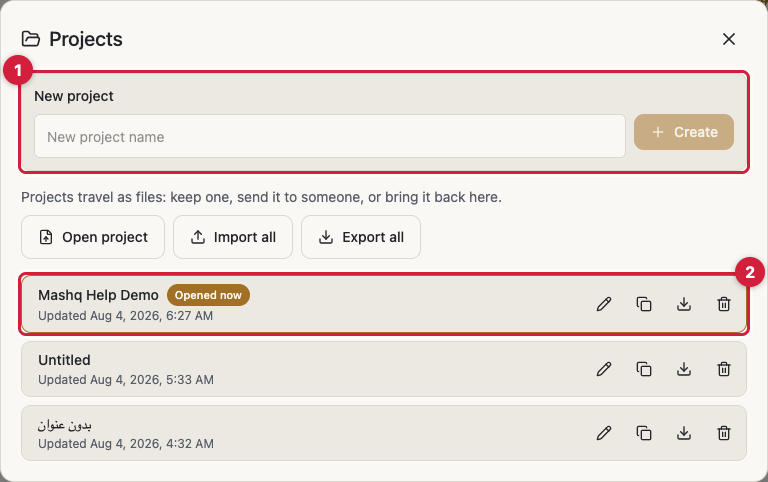
From the Projects dialog you create a new project, open any project, rename it, duplicate it into a Copy of … , and delete it after a short confirmation that asks Delete? and waits for Yes.
You can also rename a project by clicking its name in the top bar.
Each row tells you when the project was last updated, and the one you are working in is marked Opened now.
A copy on your own device
The transfer row in the Projects dialog moves projects as files. Download project gives you this one project as a file, and Export all downloads everything you have as a single zip.
Going the other way, Open project brings in one project file and opens it immediately, and Import all takes a zip or several project files at once.
After every import or export you get a What happened report listing what came in, what did not, and why. If a project uses a font you do not have, a Fonts you don't have notice names it. The project still opens, and the letters look right as soon as you add that font.
Plan limits
How many projects you can keep and how much room they take depend on your plan, and you get a plain message when you reach the limit.
The current figures for each plan are in the Pricing section on the home page.