Join and separate letters
The editor joins and separates letters automatically, following the rules of Arabic writing. When you want something else in one particular spot, for a design reason or in an awkward combination, you can force the join or the separation yourself and hand it back to automatic whenever you like.
Open the join controls
The Join button in the tool rail only opens the controls. It does not change the join itself. The choosing happens in the Letter panel, under Join / separate.
- Pick the Letter tool and click the letter on the canvas.
- Press the Join tool, or press J.
- Open the Join / separate section in the Letter panel.
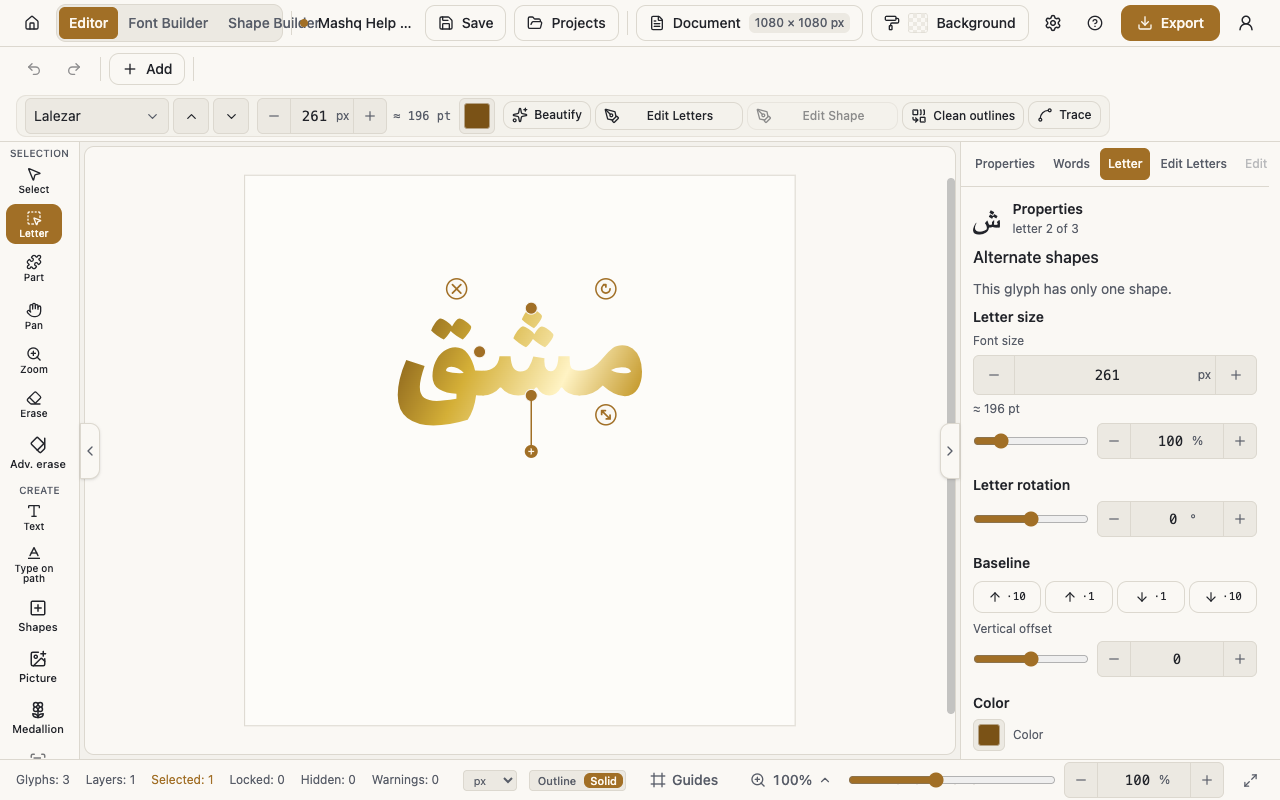
The four choices
Join to the previous letter and Join to the next letter force a connection on the side you choose.
Separate from the previous letter and Separate from the next letter cut the connection on that side.
Restore automatic join takes your hand off the letter and gives it back to the writing rules.
Two letters drawn as one shape
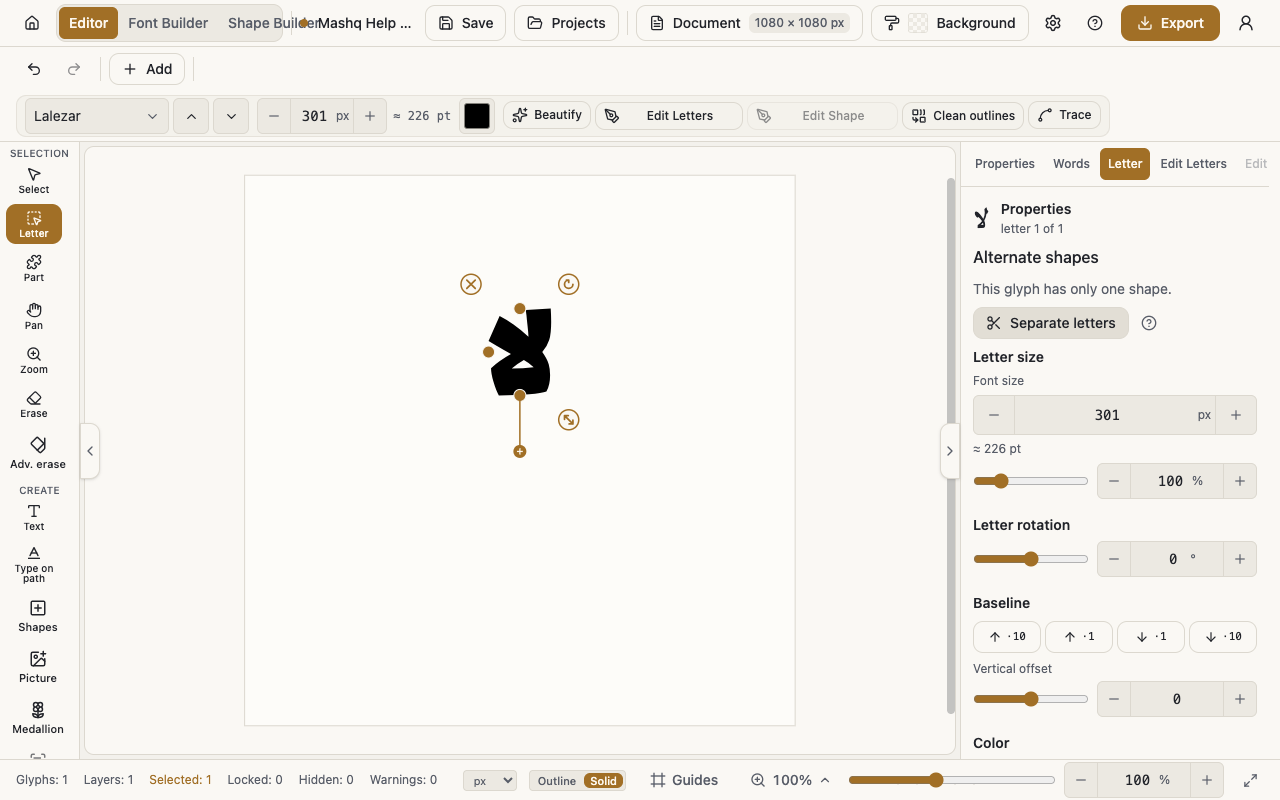
Some fonts draw a connected pair as a single shape, which leaves you unable to edit one of the two on its own. Separate letters and Use joined shape switch between the two states: the one joined shape, or the two letters split apart so each edits alone.
If you are not sure which you are looking at, press What does this do? next to the option and the editor explains it before you touch anything.
When the controls are unavailable
With no letter selected, the editor asks you to select one to join or separate.
A letter at the end of a word may simply have no neighbour to join.
Join and separate are available for hand-built font packs that carry the required letter forms. In other fonts the option is marked as not available in this font pack, and the way around it is to try another font.