Colour and paint
Everything you colour in the editor is coloured from the same pop-up: the letters' ink from the Color button, the page from Background, a shape's Fill and Border, and the Glow colour. This page covers that pop-up in full. All of it works on the Free plan.
Three ways to paint
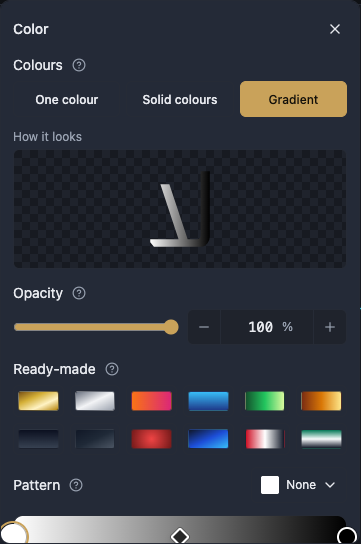
Colours at the top of the pop-up picks how the paint is made, and there are three ways: One colour, Solid colours and Gradient.
One colour paints the whole thing in a single colour.
Solid colours lay several colours side by side, each meeting the next at a hard line, never mixing. This is the one for flags and colour bands.
Gradient fades every colour into the one after it.
How it looks is the preview strip under the choice. It shows the paint exactly as it will apply, before you commit to it.
With nothing selected the pop-up says Select something on the canvas and it appears here, ready to paint. With a picture selected it says A picture keeps the colours it came with, so there is nothing here to paint: a picture shows its own colours and is not painted.
The colour bar and its stops
The bar shows the paint exactly as it paints. Tap it where there is no dot to add a colour there, and tap a dot to open that colour for editing below.
Colour followed by its number is the name of each stop. Position of colour followed by the number is where that stop sits on the bar, moved by dragging or through the field.
In Solid colours, dragging a dot moves where a colour starts: the one before it gets wider, this one narrower, and the line between them stays just as hard. In Gradient, dragging a dot gives that colour more or less room.
In a gradient only, a small diamond appears between two dots. It is Where colour and colour meet, and dragging it leans the blend towards one of the two.
Add a colour and Remove a colour change how many stops there are. A single paint has a maximum number of colours, and when you reach it the pop-up tells you to remove one before adding another.
Reverse the order flips the colours end to end, keeping the share each one had; press it again to put them back. Even spacing redistributes them so every colour gets the same share.
Direction
Direction sets which way the colours run, with four quick buttons: Horizontal, Vertical, Diagonal and Radial. The first three run in a line; the fourth spreads out from the middle.
Angle covers everything between those buttons: 0 runs from left to right, and 90 runs from top to bottom.
Length is how much of the shape the fade covers. Make it shorter and the first and last colours stay flat on either side of a tighter blend. On a radial paint it is how far the fade reaches out.
Start position is how far into the shape the fade begins, with the first colour staying flat up to that point.
Bright spot across and Bright spot down appear for a radial paint only, and move its middle left, right, up or down so the light falls where you want it.
Choosing the colour itself
Saturation and brightness is the large square: moving across strengthens the colour, moving up and down changes how light it is.
Hue is the coloured strip that picks the family: red, blue, green and everything between.
Opacity here controls how see-through this one colour is. It is not the same as Opacity in the Properties panel, which fades the whole layer together.
Hex colour is the field where you type or copy a colour code, the exact way to repeat the same colour in another design.
Pick a color from the screen is the eyedropper: grab any colour you can see on your screen and make it the paint.
Default puts the colour back to what it was.
Swatch palettes and ready-made paints
Along the bottom of the pop-up sits a row of swatches in nine palettes: Basic, Flags, Ink, Grayscale, Tile blue, Gold leaf, Desert sand, Oasis green and Pomegranate. Most of them are drawn from the colours of Arabic calligraphy and Islamic ornament.
Custom is the swatch that opens the colour wheel so you can mix a colour that is not in any palette.
Ready-made holds whole colour sets rather than single colours. Tap one to paint with it straight away, then keep editing its stops below if you want to.
Pattern
Pattern lays a repeating motif over the paint, and it works over One colour, Solid colours and a Gradient alike. Choosing None takes it off.
The gallery holds dozens of motifs, from plain ones such as Graph paper, Dots, Diagonal stripes and Chevron, to Islamic geometry such as Khatam star, Girih, Muqarnas fan, Radiant medallion and Interlaced curls.
Pattern size grows or shrinks the repeating tile. The motif itself does not change, only how many times it repeats.
Pattern opacity is how strongly the motif shows over what is underneath, and the colour beneath it stays as it was.
Pattern angle turns the whole motif, while what is under it stays upright.
Pattern colour gives the motif its own colour over the paint.
One thing to know before you export: a Pattern is left out of a PDF, and the colour or gradient underneath it comes out instead. If the motif matters to the design, export SVG or PNG.