On your phone
The Editor does the same work on a phone or a tablet. What changes is the layout: the tools move to a bar along the bottom, the panels open as sheets from below, and you drive all of it with your fingers.
The bottom bar
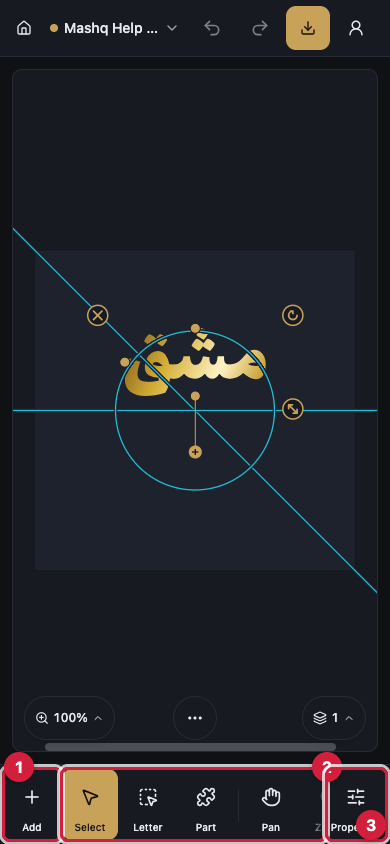
At the start of the bar sits the Add button with a plus sign. It is the single door to everything you can put on the page: text, marks, font shapes and templates.
In the middle is a strip of tools you scroll sideways with a finger. What it holds follows the selection, so you see tools such as Text, Shapes, Picture, Pan, Zoom, Erase, Kashida, Join, Color and Background.
At the end sits the Properties button, pinned so it never scrolls away. One tap opens the Properties panel.
Undo and Redo live in the top bar on a phone, together with Save, the save state and the project name.
Panels open from the bottom
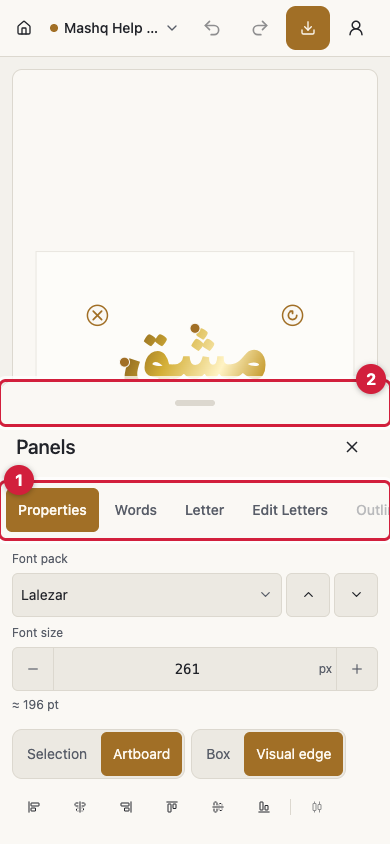
Every Editor panel is on the phone too, inside one sheet that slides up from the bottom. A row of tabs across the top scrolls with your finger: Properties, Words, Letter, Edit Letters, Outline, Clean outlines, Text Effect, Path, Layers, Marks, Font Shapes and Guides.
A tab that does not suit the current selection is dimmed but still pressable, and pressing it explains why it is refused instead of doing nothing. A tab that needs a subscription wears a lock.
To close the sheet, drag it down by its handle or press Close. It does not cover the whole canvas, so you can change a value and watch the artwork react at the same time.
Touch on the canvas
Pinch with two fingers to zoom in and out. The zoom follows the point between your fingers.
Drag one finger on an empty part of the canvas to move the whole view.
A tap selects. A double tap on text opens it for editing. Once something is selected, handles appear around it for moving, resizing, rotating and deleting.
A long press on an object opens the selection menu, the same menu a right-click gives on a computer, with duplicate, delete, group, align, layer order, lock, hide and mirror.
Tips for fiddly work
Zoom in before precise edits. Working on a single letter, or on one point of an outline, is far easier once the view is large.
Lock the layers you have finished with from the Layers panel so a stray touch cannot move them.
Turn the phone sideways for a wide composition. The bottom bar stays where it is and the canvas gets more room.
Help on a phone is inside your account menu in the top bar. The Help row opens this guide in a new tab, so your work is not interrupted.