Outline and merging letters
Two tools work on the edge of a letter. Outline draws a line around every letter, and Clean outlines paints a word as one shape so the lines where its letters cross stop showing. Use them together or on their own.
Adding an outline
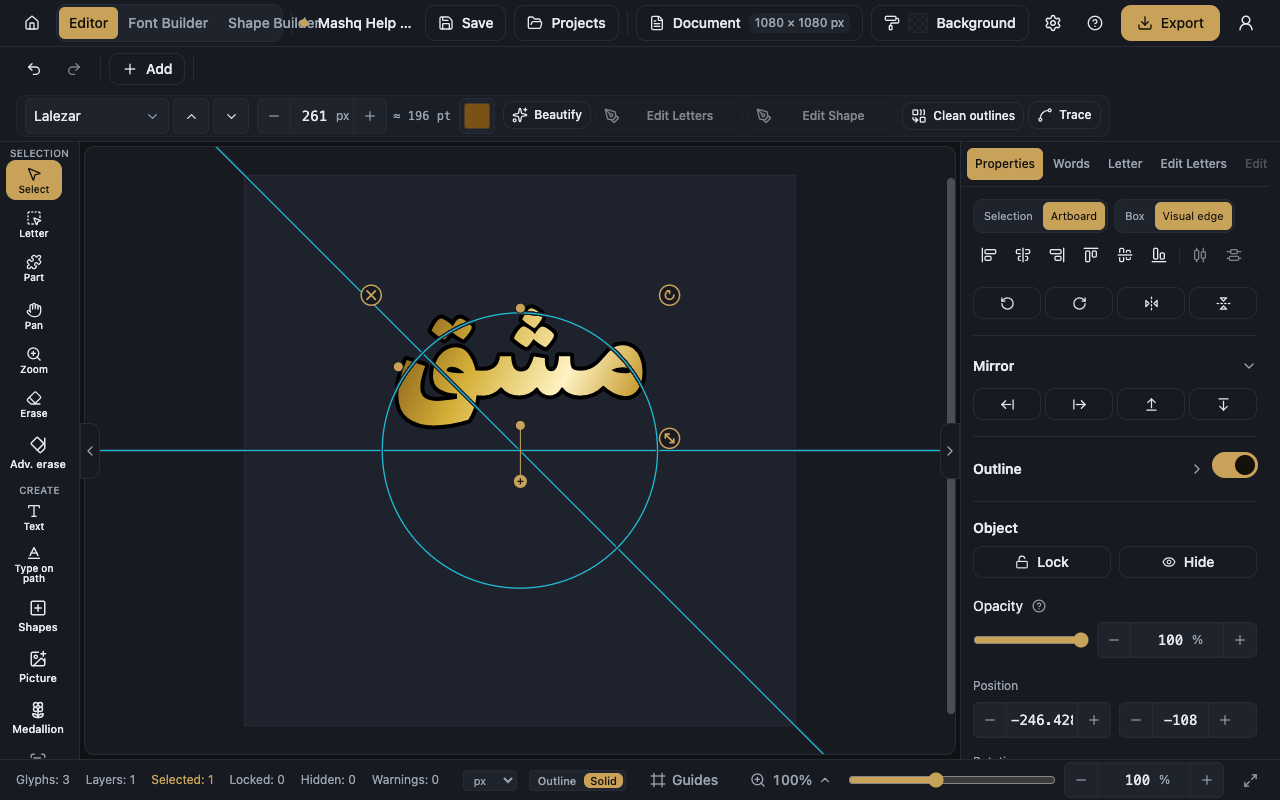
The Outline section in the Properties panel adds a line around the edge of each letter. The line has its own colour, and your letter colour stays as it is.
- Select the text layer and open the Properties panel.
- Switch Outline the letters on.
- Set Thickness, which is how heavy the line is.
- Choose Outline colour, and make it different from the letter colour so the line shows.
Where the line sits
Where the line sits decides which side of the letter's edge the line spends its thickness on, and the choice changes the look of the word a great deal.
Outside leaves the letterform untouched, which is what an outline has always done. Centre puts half the weight in and half out. Inside keeps the whole line within the letters, so they look thinner.
Merging a word's letters
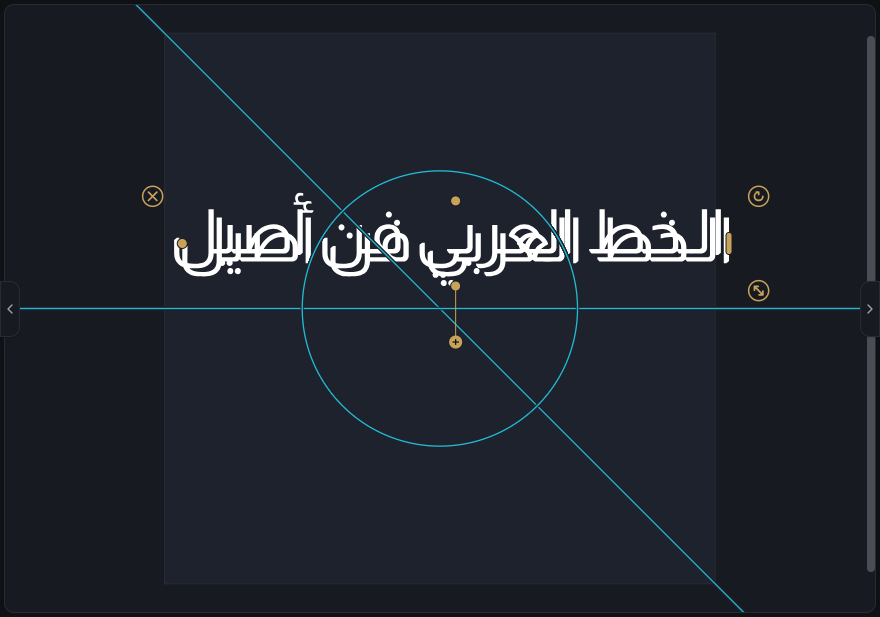
When the letters of a word cross, the crossing lines show and the word stops reading as one mass. Clean outlines fixes that: two letters that cross read as one stroke.
- Select the word and open the Clean outlines tab.
- Switch Merge this word on.
- Tune the result with the sliders in the section if you need to.
- Switch it off and the separate letters come back.
Tuning the merge
Thickness makes the whole word bolder or lighter without changing the font. Line thickness sets how thick the line drawn around the merged word is, and you see it while the word is hollow.
Close the gaps pulls letters that come close but never touch into one shape. Smooth the joins rounds the corner where two letters meet, so it flows instead of showing a notch. Remove specks drops the tiny crumbs merging leaves behind, and set too high it takes a real dot with them.
Keeping the merged look
Convert to shape keeps the merged look as a real shape you can fill and colour like any other. The text does not come back, but one undo takes it back.
Once converted, the shape becomes eligible for point editing in the Edit Font Shape and Outline panel.
Worth knowing
The word takes one colour while it is merged. A colour you set on a single letter comes back when you turn the merge off.
The Letter and Part tools are off while a word is merged. Turn Clean outlines off to edit one letter.
Merging works on text and outlines only, not on drawn shapes or pictures. If the font draws its letters as thin pen lines there is nothing to merge, so pick a font with filled letters.
A locked or hidden layer cannot be merged. Turn the lock off or show it in the Layers panel, then come back.