Write on a path
Text can run along a circle, an arc, a wave or a ribbon, or along a guide you draw yourself, and it stays editable text afterwards. Writing on a path is part of the paid Pro and Studio plans. The pricing section on the home page lists what each plan includes.
Put text on a path
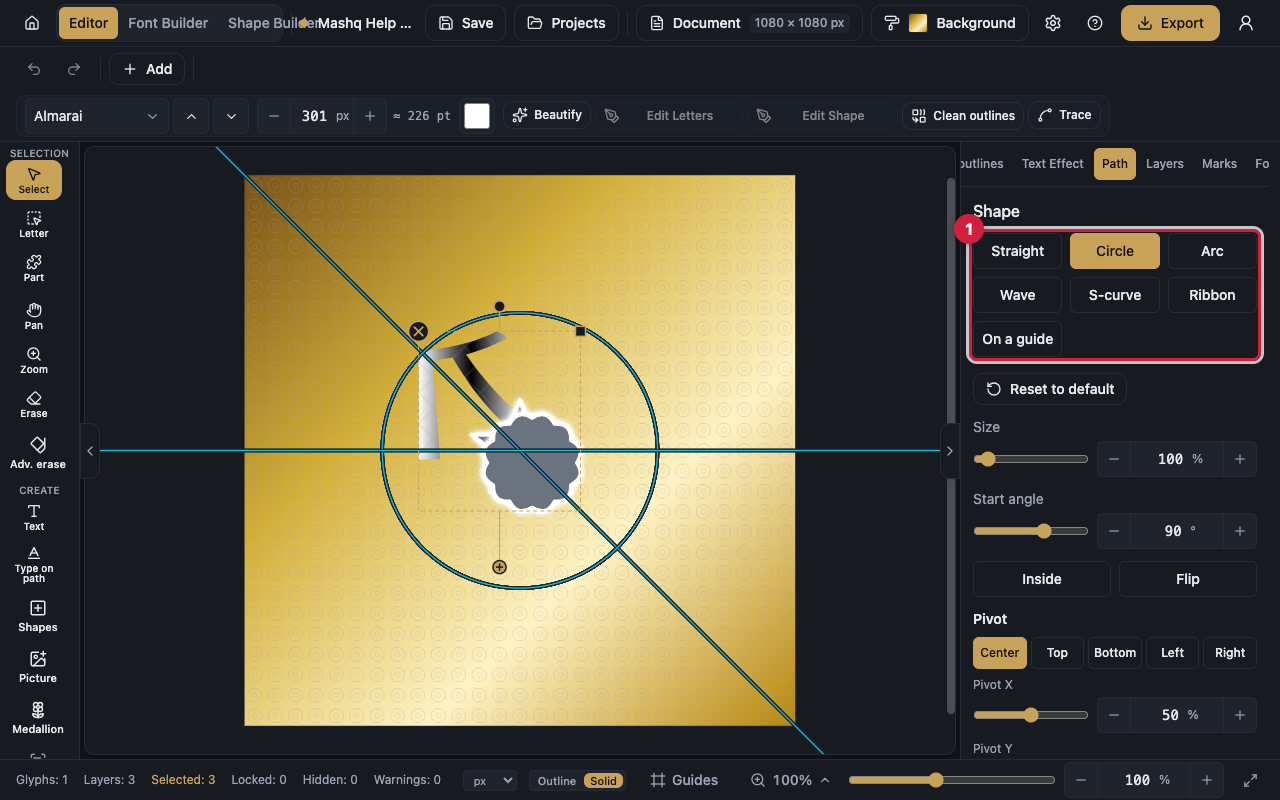
The Path panel in the sidebar is where all of this happens. Choose a Shape there and the text moves onto it straight away, with that shape's settings appearing underneath.
There is a second way in: the Type on path tool. Double-click a path with it and you get text that runs along that path.
- Select the text layer.
- Open the Path panel.
- Choose the Shape: Straight, Circle, Arc, Wave, S-curve, Ribbon, or On a guide.
- Adjust the shape's settings until the curve looks right.
- Reset to default straightens the text again.
Tune the shape of the path
For a circle or an arc: Radius opens the curve up or tightens it, Start angle decides where on the circumference the text begins, and Sweep decides how much of it the text covers.
For a wave, an S-curve or a ribbon: Waves, Height, Length and Phase, which is how you get anything from a gentle roll to a sharp zigzag.
Place the text along the path
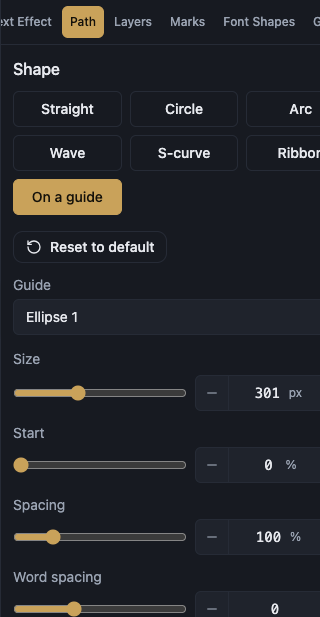
Start slides the whole run forwards or backwards along the path.
Spacing and Word spacing open out the letters and the words while they follow the curve.
Offset (in / out) lifts the text off the path line or drops it below.
Flip H, Flip V and Inside turn the run around, which is what you reach for when the text ends up upside down at the bottom of a circle.
Write along a guide you draw
When none of the ready shapes fits, draw the route yourself: create a guide in the Guides tab, then choose On a guide in the Path panel, or use the Type on path tool.
Move the whole composition
The Transform section of the Path panel moves the path and its text together: Rotate, Size, and the Pivot that everything turns around. Reset transform puts them back.
What does not combine with a path
Text wrapped into lines cannot follow a path. Turn Wrap off in the Properties tab first.
Width fitting works on straight text only, so detach the text from the path before you fit it.
Part editing is not available on curved text. Edit the letter's parts first, then apply the path.