The Words panel
Words works on one word inside the text: it shows that word's shape combinations as thumbnails you tap to apply, stretches the word, and sets the spacing between its letters.
Picking a word
A row of the text's words sits at the top of the panel. Tap one there, or double-click a word on the canvas, and its shapes appear.
Before a text layer is selected, the panel asks you to select a text layer to shape its words. If the layer has no words yet, it says that instead.
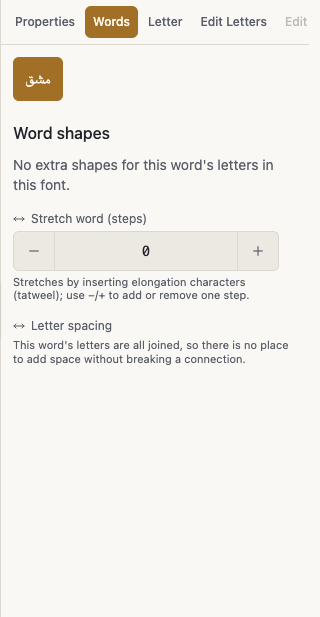
Word shapes
Word shapes lists every shape combination the current font can give the picked word, one thumbnail each. Tap one and it applies to the canvas straight away.
The tag default marks the combination the font gives on its own, and current marks the one applied now.
Reset to default shape puts the word back to the font's own shape.
When the font has no extra shapes for this word's letters, the panel says so where the gallery would be.
Stretching the word
Stretch word is a slider that lengthens the word with kashida, smoothly and continuously.
Stretch word (steps) stretches by inserting elongation characters, and Stretch step count beside it adds or removes one step at a time with its minus and plus buttons.
Reset stretch returns the word to its original length.
A short message shows while the width is being measured, and if the stretch fails the panel asks you to try again.
Letter spacing
Letter spacing adds space only at the spots where letters do not join. Joined letters stay connected, and the word grows into the space before it.
Dragging the other way pulls the letters tighter at those same spots.
Reset spacing puts it back to zero.
When every letter in the word is joined, there is no place to add space without breaking a connection, and the panel says that rather than leaving a slider that seems broken for no reason.