Create your account
The account is free and takes about a minute. You fill in a short form, confirm your email with a six-digit code, then sign in and start working.
What you need first
An email address you can open right now, because the confirmation code goes there.
Your first name, your last name, and a password you choose. The form tells you the smallest number of characters allowed and warns you if the password is shorter than that.
The phone number field is optional. It is only used to recover your account, never to sign in.
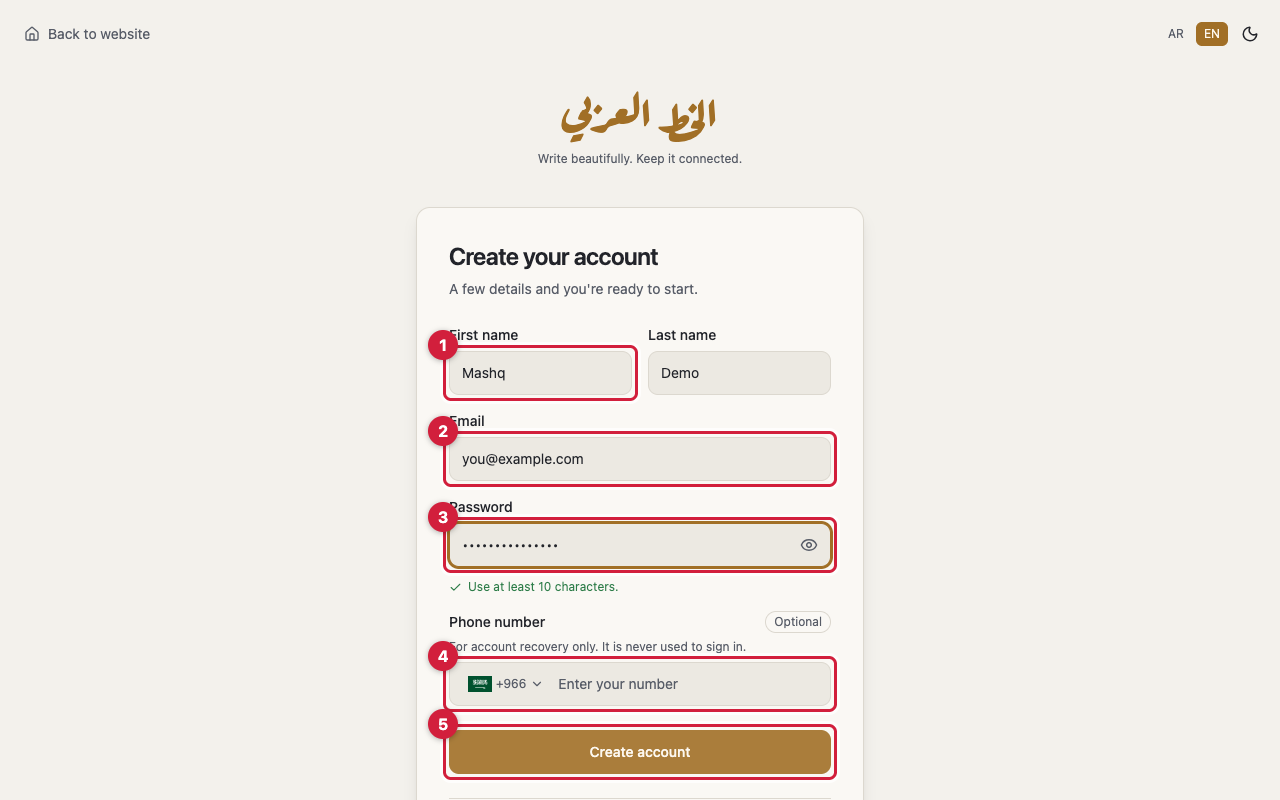
Fill in the Create your account form
Press Start free at the top or the bottom of the home page. That takes you to the Create your account form.
- Type your First name and Last name.
- Type your Email. This address becomes your sign-in name.
- Type your Password. The eye button beside the field shows and hides it so you can check what you typed.
- Add a Phone number if you want one, picking your country from the list, or leave the field empty.
- Press Create account.
Confirm your email with a six-digit code
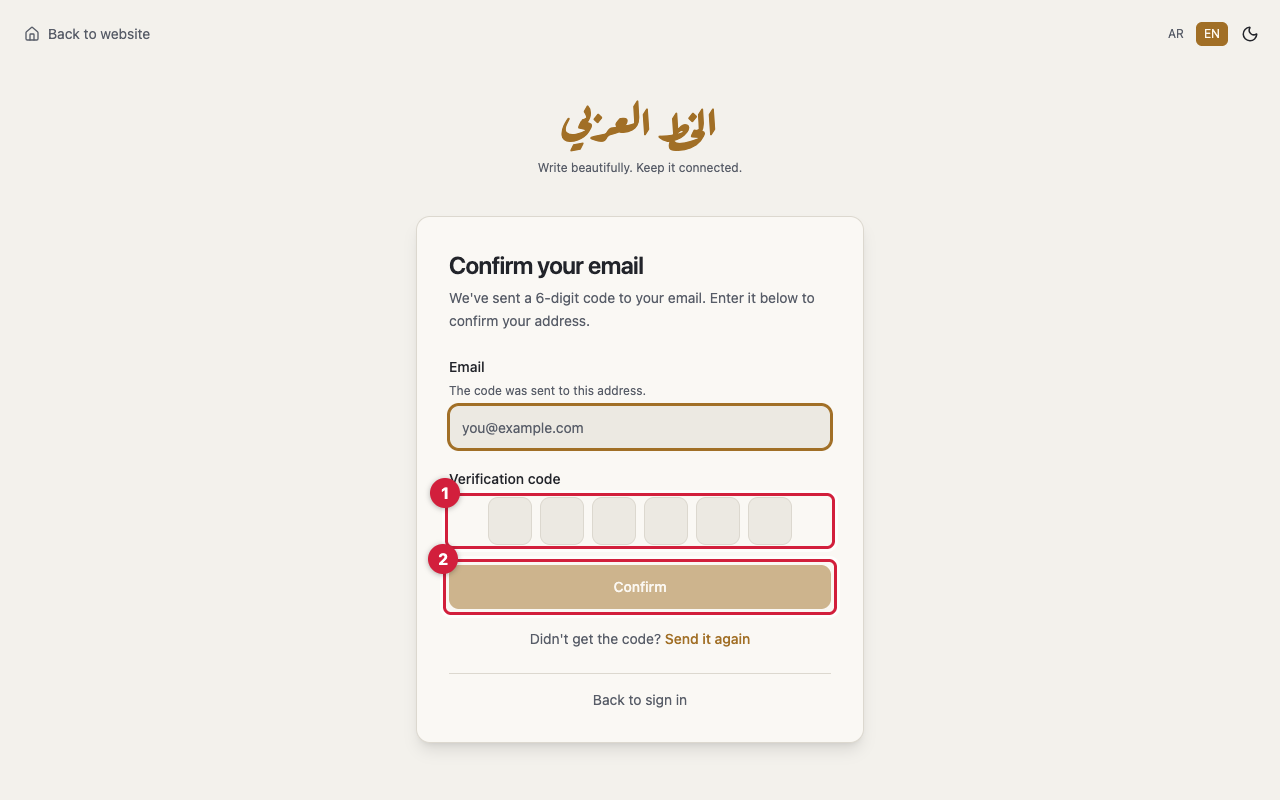
After you create the account you land on the Confirm your email screen, and a six-digit code arrives at the address you gave.
If nothing arrives, press Send it again. A Resend in counter blocks repeated requests for a short while, so wait for it to run out and try once more. It is worth checking your spam folder before you do.
Codes expire. If you see a message saying the code is wrong or expired, ask for a new one and use only that one.
- Open your email and copy the code.
- Type it into the Verification code field.
- Press Confirm. A message tells you the email is confirmed and asks you to sign in.
Your first sign-in
Open the Welcome back screen, type your email and password, then press Sign in.
The top of the home page changes after that: a Go to editor button appears, along with the Your tools row that takes you straight to the Editor, the Font Builder and the Shape Builder.
If you try to sign in before confirming your email, the site asks you to confirm first and sends you a fresh code.
If you forget your password
On the sign-in screen press Forgot your password? That opens Reset your password. Type your email, press Send code, then enter the code and choose a new password on the Set a new password screen.
This is how you change a password. There is no screen for changing it while you are signed in.
Your account starts free
A new account is on the free plan, which is enough for writing, colouring, saving projects and exporting images.
Anything that needs a subscription carries a lock badge naming the plan it belongs to. Compare the plans in the Pricing section on the home page.