The Letter panel
The Letter panel works on whatever is finer than a word: one letter, several letters together, a tashkeel mark, a part of a letter, or an elongation point. What it shows follows what you picked on the canvas.
The letter list and picking a letter
Glyphs is the list of the selected text's letters. Tap one there, or pick a letter on the canvas with the Letter tool, and its controls open.
Before anything is picked, the panel asks you to pick a letter on the canvas or from the list below to edit it.
Above the picked letter you see its place in the text, and when several letters are picked you see how many instead.
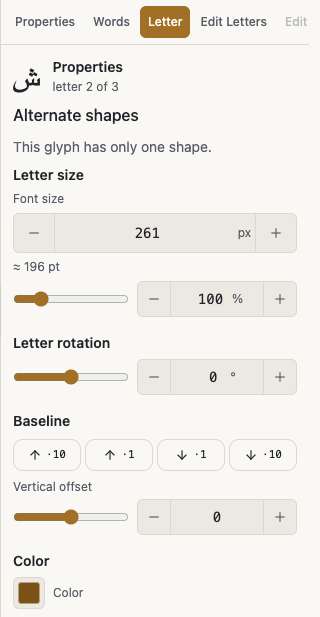
Alternate shapes
Alternate shapes lists the other drawings this font has for the same letter, with Previous shape and Next shape to walk through them and a counter showing where you are.
Every alternate carries a tag for how well it connects to its neighbour: good join, fair join, or weak join, so you know before you apply it.
The tag default marks the font's own shape and current marks the one applied now. Some fonts carry hidden styles, which show a style tag as well.
Reset to default shape clears the alternate. When a letter has only one shape, the panel says so.
Letter size, rotation, baseline, and colour
Letter size grows or shrinks the picked letter on its own, with a field in pixels and a slider in percent.
Letter rotation turns the letter about itself.
Baseline holds Vertical offset, which raises the letter off the line or lowers it, together with raise and lower buttons in small and large steps and its own reset.
The letter's colour opens the same paint pop-up the word's colour opens, so you can paint one letter without the rest of the word.
The single Reset in this section clears size, rotation, and baseline together.
Several letters together
Pick more than one letter and the section becomes a group: Group size and Group rotation work on the selected letters together.
Stretch word and Stretch word (steps) lengthen the word with kashida, the second by inserting elongation characters with a step counter beside it. Reset stretch takes it back.
Reset size clears their sizing and puts a flipped letter back upright, Reset rotation clears their angle, and Reset all transforms clears size, angle, and position.
With a group you also get Pen weight, Smoothness, and the colour of the selected letters.
Join and separate
Join / separate forces a letter to connect to its neighbour or break away from it: Join to the previous letter, Join to the next letter, Separate from the previous letter, and Separate from the next letter.
Restore automatic join hands the decision back to the font.
An option the font pack does not carry is marked as not available in this font pack. When a letter has no neighbour, there is nothing to join, and the panel says so.
Separate letters and Use joined shape switch between the single connected shape some fonts draw for two letters and the two letters split apart, so you can edit each one alone. A short explanation sits beside them.
Tashkeel marks
Pick a mark and the panel shows the Mark itself, Attaches to for the letter it sits on, and Base index and Offset.
Move holds nudge buttons left, right, up, and down in small and large steps, plus Reset position. You can also drag the mark on the canvas.
Mark size and Mark rotation each have their own reset.
Alternate shape lists other drawings of the same mark, applied with Use, and the applied one is marked Active. Reset to default shape clears it.
Visibility holds Hide this mark and Show this mark, and the panel tells you when a mark is hidden.
Parts
Pick a part with the Part tool and you get Part with Part size and Part rotation, each with its own reset, and Reset part which clears both. You can also drag the part on the canvas to move it.
Part editing is not available on curved text. Edit the letter's parts first, then apply the path.
It is also unavailable while the text is wrapped into lines. Drag the wrap handle back out to one line, edit the parts, then wrap it again.
Kashida length
Pick an elongation point and Kashida length appears with Length, showing the shortest and longest this point accepts.
The lengthen and shorten buttons move it one step at a time, and Reset to default length puts it back.
The section is not usable when the font pack has no kashida, or with an uploaded font that shapes typed tatweel natively. A kashida only fits between two connecting letters.
Glyph inspector
Glyph inspector reads out the picked letter: Glyph id, Character, Form, Advance, and Anchors.
It is read-only, and it earns its place when you are building a font yourself or working out why a join came out the way it did.