The Edit Letters panel
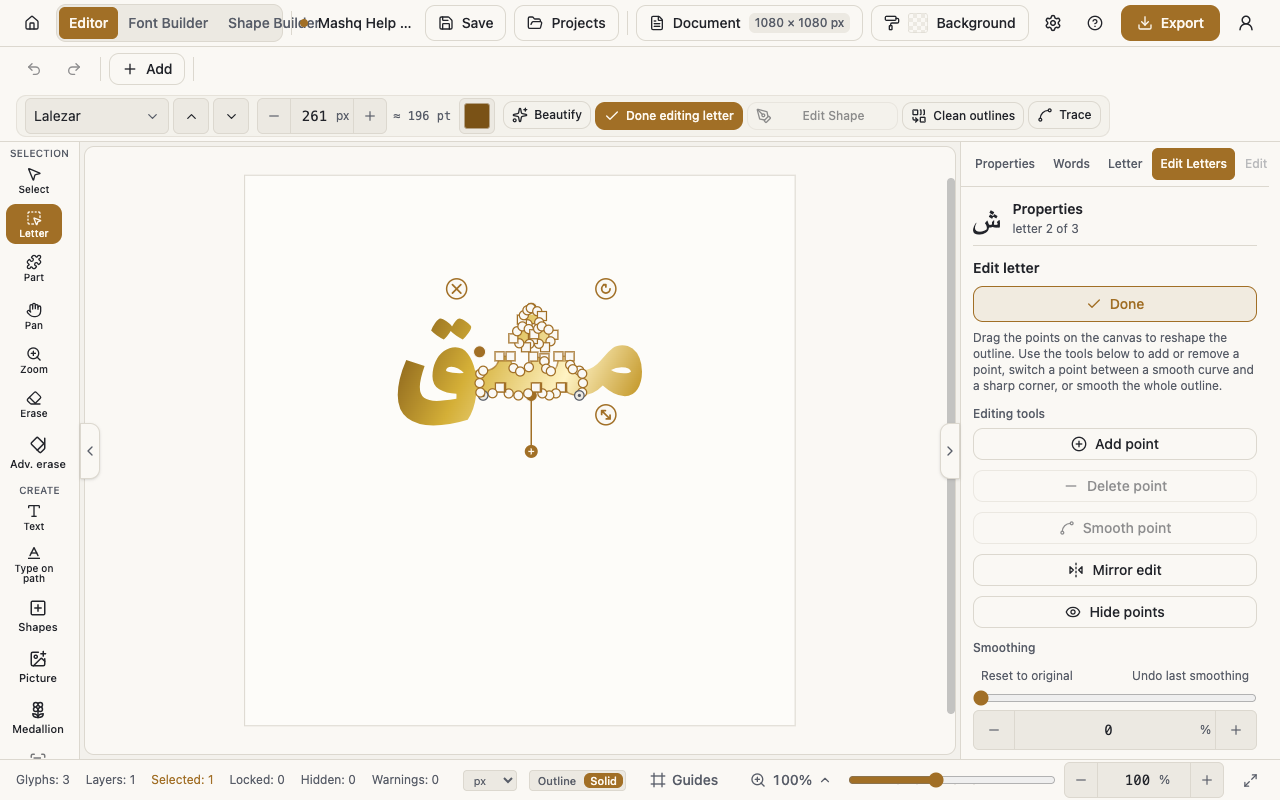
Edit Letters opens the letter's own outline: you drag its points on the canvas, add or remove a point, smooth the curve, and then choose where the edit lands, on this letter alone, on every copy in the project, or in the font itself.
Starting and finishing a session
Point editing works on one letter at a time. Pick the Letter tool and click a letter; if you have not picked a single letter, the panel says so.
Edit starts the session and Done ends it. While it runs, you drag the points on the canvas itself.
Ghost of original, in the view menu, keeps a faint trace of the original shape in front of you while you work.
Editing tools
Add point turns on add-point mode, and then you click the outline to insert a point.
Delete point removes the selected point, and stays off until you select a point on the outline.
Smooth point and Sharp corner switch the selected point between a smooth curve and a sharp corner, and are also off until a point is selected.
Mirror edit moves both sides together: dragging a point also moves its twin across the centre.
Hide points shows just the letter while you work, so the points and the outline disappear until you press it again. The sliders hide them on their own while you drag.
Smoothing, Zigzag cleanup, and Pen weight
Smoothing smooths the whole outline. Select three or more points and the caption becomes Smoothing (selected points) and the slider works on those only.
Undo last smoothing steps back once, and Reset to original goes back to the outline you started from.
Zigzag cleanup removes the fine zigzag on traced edges while keeping the shape, so unlike Smoothing the form barely moves. Selecting three or more points confines it to that area. Undo last cleanup sits beside it.
Pen weight thickens or thins this outline, and the points rebuild on the new outline; zero brings back exactly what you started from. It is off while Mirror edit is on, because the symmetric pairing cannot follow a rebuilt outline.
Anchors
Anchors are the letter's join points and the places its tashkeel marks sit.
Edit anchors starts moving them on the canvas, Done finishes, and Reset anchors puts them back where they were.
The optional anchors can be added or removed, while the entry and exit points are what decide how the join is drawn.
This letter
A small chip reads Modified or Not modified, and Reset beside it clears this letter's edit. The button is off when there is nothing to reset.
Copy edit copies this letter's edit, and Paste edit applies it to a matching letter, meaning the same letter in the same form. Both stay off until an edit has been copied.
Apply to more
Save to all copies in project applies this letter's edit to every copy of it in this project only, and the font itself is untouched. Remove from all copies takes that back.
Save to font pushes the edit into the font itself, so it affects every project that uses this font. A confirmation appears before anything is written.
When you save to the font you choose Replace the letter, which puts the edit in place of the original shape, or Add as an alternative, which sets it beside the original so you can pick it later from the letter's Alternate shapes.
Remove from font pulls a saved edit back out, and the letter returns to the font's original shape in every project that uses it. The button is off when the letter has no saved edit.
A hand-built font has its original shape replaced when you save, and that cannot be undone. The confirmation says so plainly.