Tashkeel and dots
Marks and dots are part of the beauty of a word, and their right position changes with every font. This guide covers showing and hiding them, moving and resizing a single mark, swapping its shape, and dropping a mark or a dot on the page as its own piece.
Show or hide the marks
Tashkeel in the view menu controls what you see on the canvas, so you can switch it off to look at the skeleton of the word and then bring it back. That is a different thing from Hide this mark, which affects one particular mark in your artwork.
A few fonts fuse a doubled mark, a shadda joined with a vowel, into a single stroke that the letterform itself needs, and that one stays visible even when you switch tashkeel off.
Adjust a mark on a letter
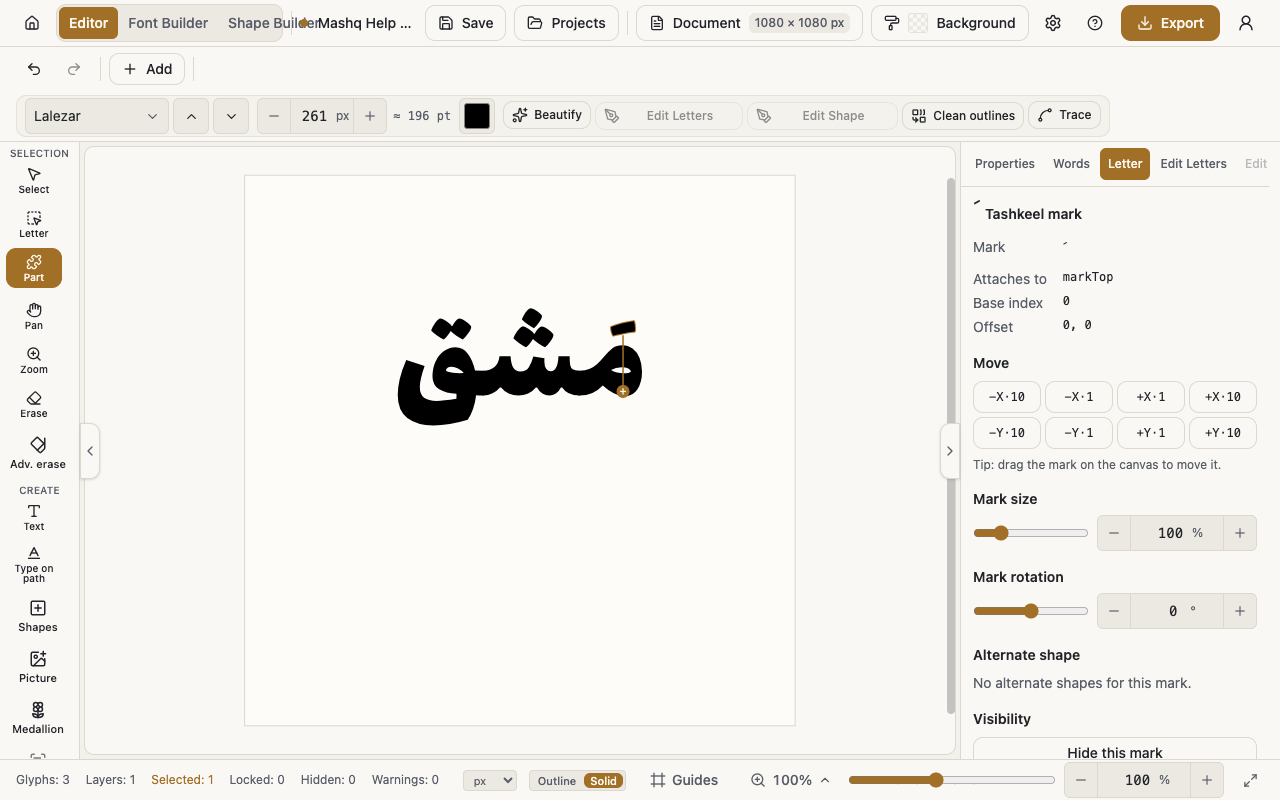
Once a mark is selected, the Tashkeel mark section appears in the Letter panel with Mark size, Mark rotation, and Move buttons in small and large steps in all four directions. The panel also tells you which letter the mark attaches to.
Faster than any of that: drag the mark itself on the canvas to move it.
Reset position, Reset size and Reset rotation put everything back.
- Pick the Letter tool or the Part tool.
- Click the mark on the canvas.
- Open the Letter panel and set the size, rotation and position.
Swap the shape of a mark
Some fonts draw the same mark in more than one way. They sit under Alternate shape in the Letter panel: press Use on the one you want, and Reset to default shape brings the font's own drawing back. If the mark has no other shapes in this font, the editor says so.
Hide a single mark
Marks can crowd each other in a tight combination. Press Hide this mark and that one mark disappears while the letter and the word stay as they are. The editor reminds you it is hidden until you press Show this mark.
Place a mark or a dot on its own
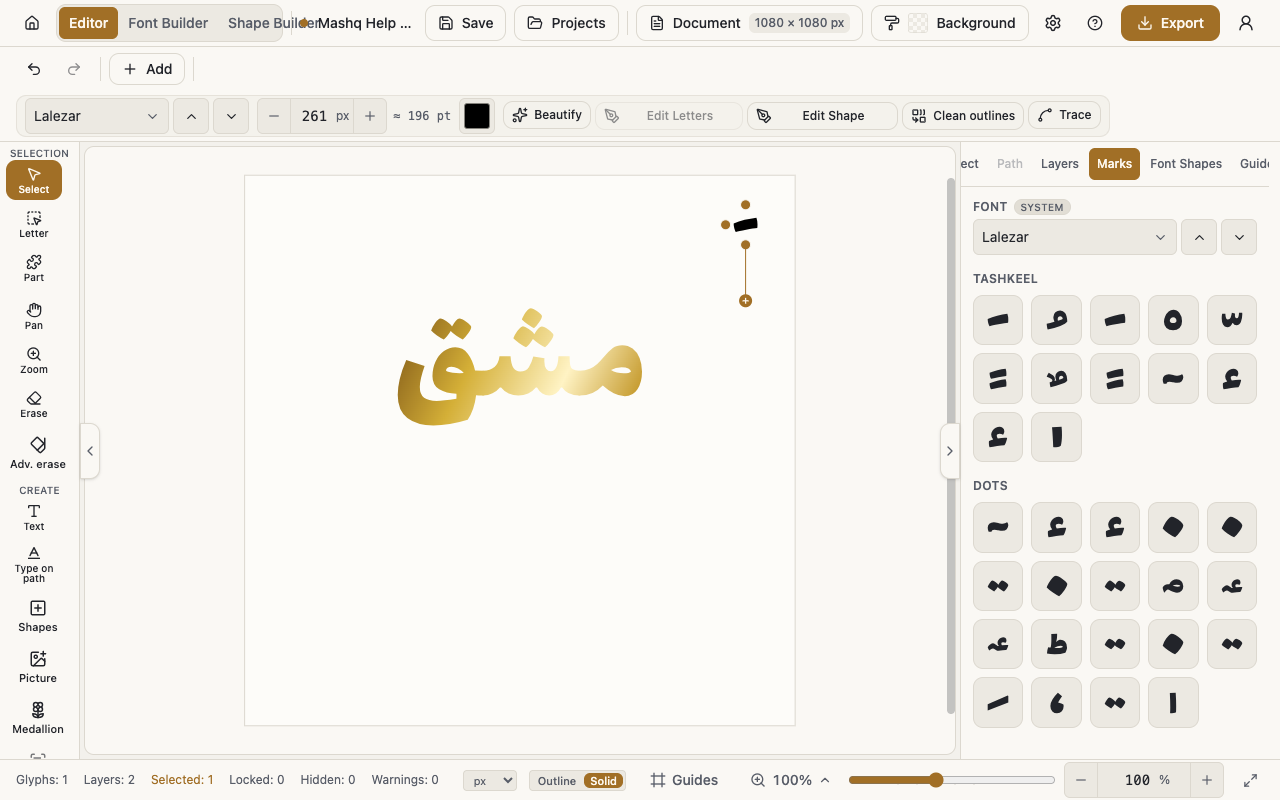
The Marks & Dots palette drops a mark or a dot on the page as a piece in its own right, which you move and colour like any other layer. It is for decoration and for filling space, not for vowelling a word.
The palette has two groups, Tashkeel and Dots. At the top you choose which font the drawings come from, and if that font has none, the editor tells you.
- Open the Marks tab in the sidebar, or choose Add marks from the Add menu.
- Choose the font at the top of the palette.
- Switch between the Tashkeel and Dots groups.
- Click a drawing to insert it on the page.
One thing you do not have to worry about
When you move a letter or a word with the Letter tool, its tashkeel follow on their own. You never have to chase each mark afterwards.