Edit letter outlines
When a letter is not shaped the way you want it, you can move the points of its outline yourself. This page covers an editing session from start to finish, and where the edit can be saved afterwards.
Two panels, not one
Edit Letters belongs to a letter inside a text layer. Pick the Letter tool, click the letter, then press the button to move its outline points on the canvas.
Edit Font Shape and Outline belongs to an outline that already exists: a font shape, a merged or traced outline, or a word converted to a shape. Select it, then press the button.
An editing session
Editing is a session with a beginning and an end, and it does not finish until you press Done.
- Pick the Letter tool and click the letter you want, or select the existing outline.
- Press Edit.
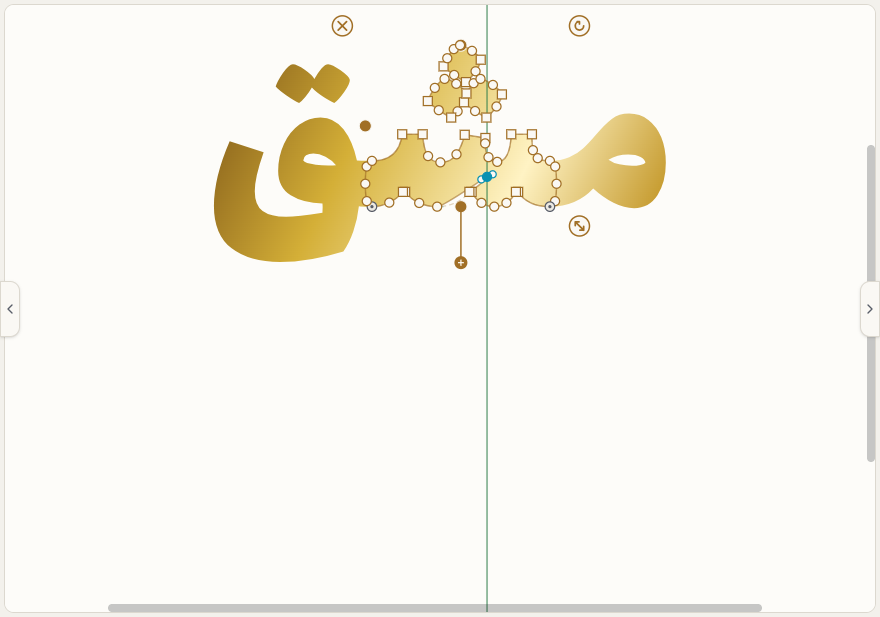
- Drag the points on the canvas to reshape the outline.
- Press Done when you finish.
The point tools
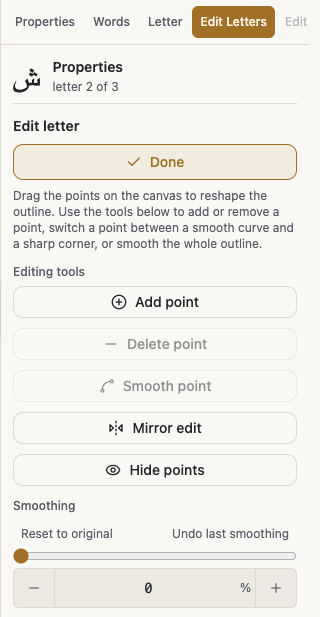
Turn Add point on first, then click the outline to insert a point. Delete point removes the selected one.
Smooth point and Sharp corner switch the selected point between a curve and a corner, and that alone changes the feel of a letter a great deal.
Smoothing and weight
Smoothing works on the whole outline, and Smoothing (selection) works only on the area you selected.
Zigzag cleanup removes the fine zigzag on traced edges while keeping the shape, and unlike Smoothing the form barely moves. Select three points or more to clean just that area.
Pen weight thickens or thins the outline, and the points rebuild on the new shape. Undo last smoothing steps back once, and Reset to original takes you all the way back.
What makes the work easier
Mirror edit moves both sides together: dragging a point also moves its twin across the centre.
Hide points shows you just the letter while you work, until you press the button again, and the sliders hide the points automatically while you drag. Ghost of original in the View menu keeps the original outline faintly behind you for comparison.
Anchors are a different thing from outline points: they are the letter's join and mark positions, and you move them from Edit anchors.
Where the edit is saved
By default an edit belongs to that one letter in that one place. Save to all copies in project applies it to every copy in this project only, and the font itself does not change.
Copy edit and Paste edit carry it to a matching letter, meaning the same letter in the same form.
Save to font goes further: it puts the edit into the font, so the letter changes in every project that uses that font. It asks how the edit should land, as Replace the letter or Add as an alternative. Remove from font undoes that and puts the letter back to the font's own shape.
Save to shape does the same for an outline that came from a shapes font, so it changes for every future insert.
Worth knowing
Point editing works on one letter at a time, so pick a single letter.
Saving into a hand-built font replaces the original shape and cannot be undone. An uploaded font is safer: you can remove the edit from it later.
Paste edit needs an edit copied from a matching letter, and an unedited letter has nothing to copy or reset.
Turn Mirror edit off before changing the pen weight, because the symmetric pairing cannot follow a rebuilt outline.
Letter editing applies to text layers, so select a text layer before you look for the button.