Export your work
Exporting takes your design out of the editor as a file you can share, print, or cut on a machine. This page covers the formats and when to pick each one, the print options, and the export for cutting dialog.
The quick menu
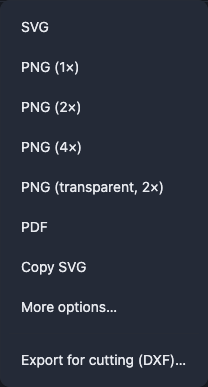
The Export button in the app bar gives you the most-wanted results in one click, each one matching the screen and framing the full page: SVG, PNG at 1×, 2× and 4×, PNG with no page fill, PDF, and Copy SVG, which puts the file (background and colours included) on the clipboard.
More options… sits first in the menu, above a divider, and opens the Export design dialog, where everything can be set.
The Export design dialog
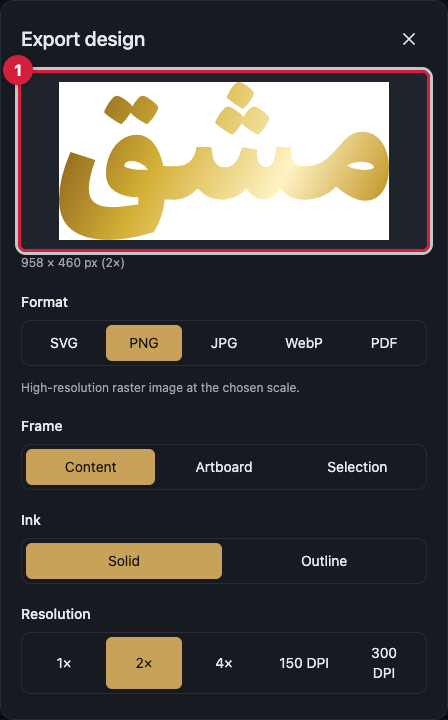
Format chooses between SVG, PNG, JPG, WebP and PDF. Frame decides what goes into the file: Content, Artboard or Selection.
Resolution sets the output density, and Quality sets JPG and WebP compression. Background chooses between As on screen (the default, matching the canvas exactly), White page (print), and Transparent.
Margin is empty space added around the artwork that stays in the file, and at zero the file is exactly the artwork. Ink chooses filled or hollow letters, and File name names the download.
At the top of the dialog, Preview shows the real result and Output size tells you how big it will be before you download.
Which format for which job
SVG is layered vector, and every object is an editable layer in software such as Illustrator or Inkscape. Pick it when someone else finishes the work.
PNG is a high-resolution raster image at the scale you choose, and it is the comfortable choice for sharing and home printing.
JPG is a small file for sharing with no transparency, and WebP is small too and does support transparency.
PDF is a true vector PDF whose paths stay crisp and selectable, and it is usually what a print shop asks for.
The print options
Bleed adds extra artwork past the edge, so that when the printer trims the paper and the cut lands slightly off there is no white sliver at the border. The trimmed result is still your original size, so leave it at zero unless a print shop asked for it.
Print black and Crop marks appear only when Format is PDF and Background is set to White page (print). Print black uses full-strength black so fine strokes stay sharp, and Crop marks are short corner lines showing a print shop where to cut.
The Print button opens your design as a PDF in a new tab, ready to print at its real size.
Exporting for cutting
Export for cutting (DXF)… makes a file for a laser or CNC machine to cut your design out of wood, acrylic or metal.
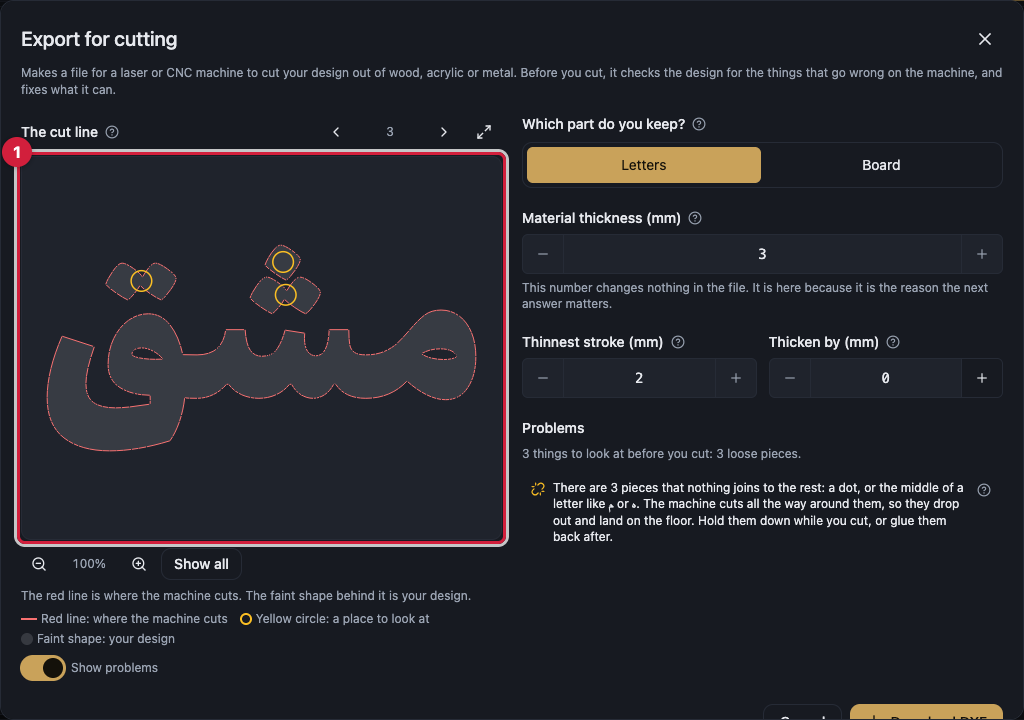
The first question is Which part do you keep? Letters gives you the letter shapes themselves, and Board gives you a sheet with letter-shaped holes, which suits a stencil or a panel with a light behind it.
Then you enter the reality of the material in millimetres: Material thickness, Thinnest stroke and Thicken by. The cut line is a live preview where the red line is where the machine cuts and the faint shape behind it is your design.
Before you download, it checks the design and lists the problems: skinny spots, loose pieces, and details too small for the machine. Fix and Fix all set Thicken by to the value that solves the warning.
What your plan needs to cover
PNG at the ordinary scales and with a transparent background is open to everyone.
SVG, PDF, the print resolutions, and the print options such as bleed, print black and crop marks are on the Pro and Studio plans.
Download DXF is on the Studio plan today. The Export for cutting dialog and its checks are open to everyone, so you can see the cut line and clear the warnings before you decide.
The Pricing section on the home page shows what each plan includes today.
Worth knowing
If a size is too big for your browser to make as a picture, pick a smaller resolution or switch to SVG or PDF, which have no size limit.
A pattern is left out of a PDF, and the colour or gradient underneath it comes out instead.
A PDF carrying a text effect is saved as one high-resolution picture inside the page, so its text stops being selectable vector artwork. A PDF with no effect stays sharp and vector.
If an uploaded font is still loading, wait a moment and try again.
Tashkeel marks you hide with the view toggle stay out of every export, the dialog preview, printing, and Copy SVG. Export for cutting is the exception: it always shows the exact cut, marks included.