Font Builder reference
The Font Builder is where you build and manage your own Arabic fonts: draw the letters and the marks, decide how they connect, check the font's health, and download it or bring one back. The builder works on the Free plan, and how many fonts you keep follows your plan, as set out in the pricing section on the home page.
The six builder modes
Builder mode is the bar along the top, with six modes: Library, Glyphs, Tashkeel, Relations, Report and Export. The Library is always the starting point, because that is where you pick the font you are working on.
View at the top switches how letters are drawn between Outline and Solid. It affects what you see and never changes the font.
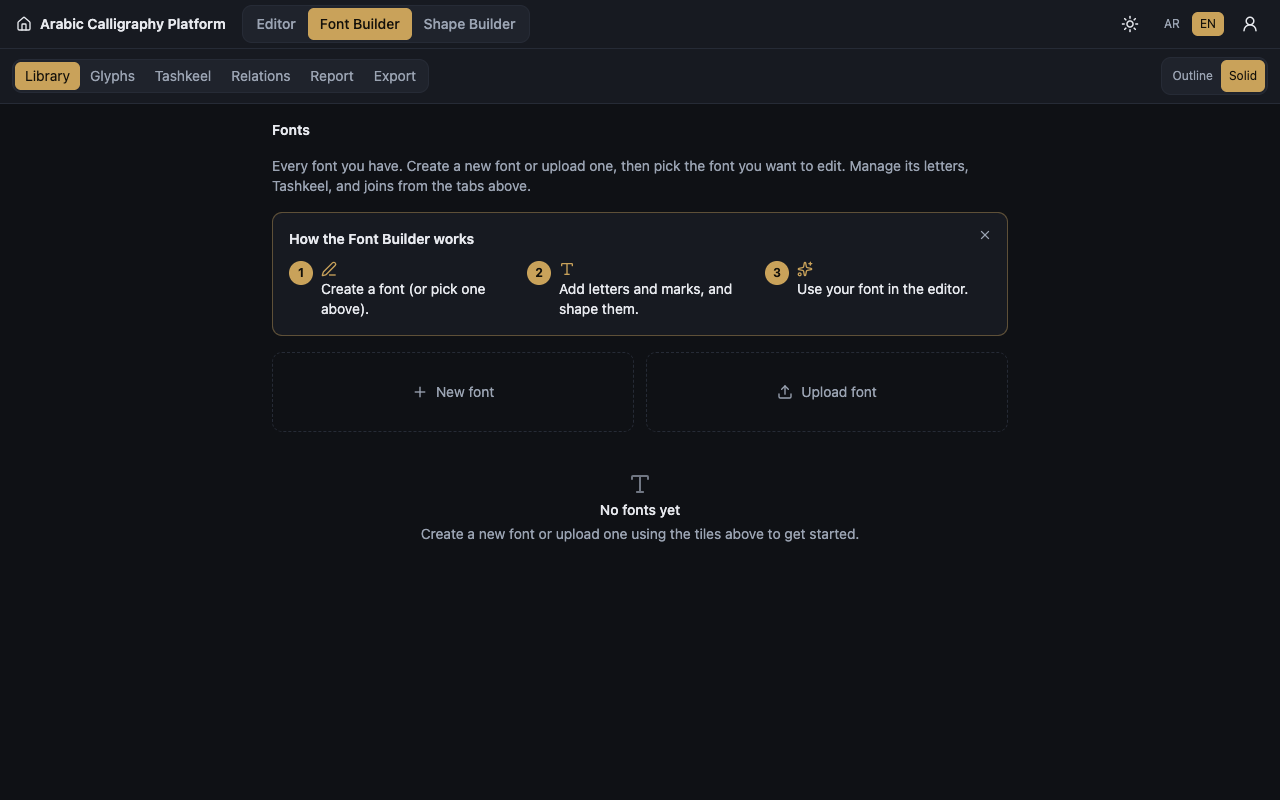
Library: your fonts
Fonts lists every font you have, with counts of its glyphs, marks, joins, ligatures and kashida.
New font creates an empty font: type a Font name and press Create. Rename and Delete manage it afterwards, and deleting asks first.
The badges say what you are allowed to change: Editable is a font of your own, Read-only is one you cannot change, and System is a font from the system library, view-only.
How the Font Builder works is an introductory card with three steps: create a font or pick one, add letters and marks and shape them, then use your font in the editor. Dismiss closes it when you no longer need it.
Before you have any font, the library says No fonts yet and points you at the two tiles above.
Uploading a font
Upload font turns a ready-made font file into an editable font in your library. It wants a full TrueType or OpenType font, a file ending in .ttf or .otf. Web font files often miss letters, so use the full one. Only upload fonts you are licensed to use.
How to add a font sets out four steps in the window: get the font file, click the box and choose it, check the preview and the letters found, then give it a name and save.
What we found is the import report before saving, counting the letters, shapes, joined pairs and tashkeel marks it read.
Joining style is the important question. Flat (Naskh-style) keeps letters on a straight line; Cascading (Ruqʿah / Nastaliq-style) makes them step down as they join. The app picks the best guess, you flip it if the preview looks wrong, and you can change it later on the font at any time.
A warning may appear before you save: the font looks cascading, it has only a few Arabic letters so some words may not show fully, some core letters are missing and are listed under Missing core letters, or the font draws whole words rather than single letters, which makes editing one letter at a time limited.
A file can also be refused: it is not a .ttf or .otf, it is larger than the allowed size, it could not be read as a font, it holds no Unicode Arabic letters, or it holds Arabic letters whose shapes could not be read.
Save to library commits the font. How many uploaded fonts you may keep follows your plan.
Library: the font's tabs and the glyph grid
A selected font has three tabs: Glyphs, Tashkeel, and Joins & ligatures.
Search a letter… filters the grid as you type.
Filter by form narrows the view to one positional form: isolated, initial, medial or final, with All forms bringing everything back.
Show filters by state: All shapes, Only defaults, Only with alternatives, With hidden styles, and Only edited.
Health is a colour band rating each letter. Valid is a standard letter with a valid shape. Uncommon is a character that is probably junk from a font import. Problem covers a letter with no character at all, an empty or invalid shape, a non-Arabic letter, or a pre-shaped form this app does not use.
The badges on the tiles are Default, Alternate, Hidden styles and Edited outline.
Each letter has Edit, Duplicate, Delete and Preview, and on a font that is not yours, Copy to my font takes a copy you can change. Open in Relations editor jumps to that letter's joins. Deleting asks first and cannot be undone.
Scan styles looks inside an uploaded font for hidden letterforms that ordinary typing never reaches, and reports how many letters have styles. Scan all for styles does the same across all your fonts.
Clean up font shows the letters that look like junk or are uncommon. The junk is pre-selected for removal, so you uncheck anything you want to keep and then remove the rest, with Select all and Deselect all to help. Removal cannot be undone.
Glyphs mode: building a letter
Glyphs mode walks you through three stops: Choose the letter & settings, then Your letter, then Check & preview. Add letter starts a new one, Start from a saved letter picks up one you already have, and Back to grid returns to the library.
Import a shape decides where the letter's outline comes from, with four sources: Paste SVG, SVG file, Image and PDF. Pasting accepts a path value or full SVG markup, and when there are several paths, Choose a path lets you pick one. An SVG file has its paths and basic shapes extracted while scripts are ignored. An image or a PDF page is traced into a vector outline.
Quality controls appear for an image or a PDF: Light / dark balance, Auto threshold, Invert (light on dark), Smooth, Despeckle (remove specks), Simplify and Normalize size, with Reset to defaults, Retry and Accept alongside.
Choose the letter binds the outline to a keyboard character: type one letter or pick from the list, and the Unicode number fills in automatically. Leave it empty and the app warns that this will never appear in any word.
Letter settings holds Form for the positional shape, Letter width for how much room it takes, Priority for when several shapes compete, Default glyph for this character/form to make it the one that is used, and Alternate name to label an alternate meaningfully.
On an uploaded font a custom shape stays an alternate, and the font's own letter remains the default on the canvas.
Glyphs mode: attachment points and refining
Attachment points decide how the letter meets its neighbours and its marks. Drag the handles on the preview or type the values, with Zoom in, Zoom out, Reset zoom and Pan to inspect the detail.
Entry anchor and Exit anchor are the two join points: the next letter connects at one and the previous letter at the other, and both belong on the connecting stroke so the letters really meet.
Mark top and Mark bottom are where a harakat sits above and below the letter. Mark above and Mark below are the attachment points for marks placed above and below it. Shadda anchor, Hamza anchor and Dot anchor are where a shadda, a hamza and the letter's dots attach.
Optional anchors is a small palette that adds or removes mark and dot points as the letter needs them. Reset anchors to default puts the points and the width back to the font's standard spots, computed from the letter's shape, which is the cure for an anchor placed off the connecting stroke.
Smoothing, zigzag & weight adjusts the outline only, and connection points and letter width never move with it. Smoothing softens the whole outline into flowing curves, Zigzag cleanup removes the fine zigzag on traced edges while keeping the shape, and Pen weight makes the outline bolder or thinner. Reset to original goes back to the outline before any adjustment, even after saving.
Cleanup offers one-click tidy-ups, each with a Before and After preview and each undoable: Round coordinates, Smooth at a Smoothness you choose, Tidy path text, Recenter to origin, Normalize to em, Fit to size and Recompute bounds. The preview also shows Advance before and Advance after, so you can see what an action does to the letter's width.
Glyphs mode: checking and saving
Check & preview is the last stop. The verdict is either Glyph is valid or This glyph has problems, followed by the list.
Test word takes a word, and Preview in a word shows your letter inside it among its neighbours. If the preview fails, one of your letters has an invalid shape, and the Report mode will find it.
Path preview shows the outline on its own and tells you when something is Not a valid SVG path.
Save glyph to pack commits the letter into the font, then reminds you to switch the editor's font pack to use it.
Your saved letters lists what you have built, with Default and Alternate badges, and Open brings a letter back into the flow for editing.
Tashkeel mode
Tashkeel mode builds a mark and sets how it attaches to a base letter. Add tashkeel starts a new one.
Pick a mark chooses which mark it is: type one, or pick from the list of Fatha, Damma, Kasra, Sukun, Shadda, Tanween Fath, Tanween Damm, Tanween Kasr, Maddah Above, Hamza Above, Hamza Below and Superscript Alef.
Attaches to picks the base-letter anchor the mark sits on, out of Top, Bottom, Above, Below, Shadda, Hamza and Dot.
Position nudge moves the mark slightly off that point horizontally and vertically, and Scale makes it larger or smaller.
Default mark for this code point makes it the one that gets used, and Alternate name labels an alternate version.
Two previews work side by side: Mark alone and On a base letter. The verdict is Mark is valid or a list of its problems, and Save mark to pack commits it into the font.
Relations mode
Relations mode is headed Joins & elongation and has three tabs: Joins, Ligatures and Kashida. Everything here is saved into your font.
Joins are the connecting stroke drawn between two letters. Set From letter and To letter through the glyph search, then the stroke's shape. Offset X and Offset Y place it. The preview shows the join between the two letters; it is rough, so some overlap there is normal and not the final result.
Shape picks a ready stroke: Straight, Curved, Curved up, Curved down, Wavy or Custom. Advanced: edit the shape (SVG) is there for anyone who wants to write the path themselves.
Adjust the shape forms the stroke by dragging: Length, Height, Thickness, and Ends, which are either Round or Flat.
Ligatures are two or more letters drawn as one shape, like لا. Type the Character sequence the ligature replaces, choose the Target letter drawn instead, and set the Priority.
Kashida is the elongation stroke that stretches a letter to justify a line. Choose the Compatible forms it works with, the Length range between Min length and Max length, and the Stretch mode. The preview shows the kashida At minimum length and At maximum length.
Import your own shape accepts an SVG file or a PNG image traced into the stroke, instead of the ready shapes.
Every tab keeps a saved list, and each entry has Edit and Delete, with deletion final. Tags is an optional field for sorting entries.
Report mode
Report mode is headed Pack report and answers two questions: is the font healthy, and what is still missing. It has three tabs: Validation, Coverage and Words.
The Validation report lists the pack's problems grouped by severity into Errors and Warnings. Errors block saving; warnings are advisory. With nothing to report it says The pack passes validation.
It also counts the uncommon and problem letters and notes that these are not validation errors: they may be junk from an import, to be reviewed with Clean up font in the Library.
Missing-glyph coverage is a table showing, for each core Arabic letter, which of the four positional forms the font still needs. Cells marked Missing are what to draw next; those marked Present are done. A coverage summary sits above the table.
Mark anchors, inside Coverage, says how many of the base mark attachment points the font provides. These are the points tashkeel marks bind to.
The Word test suite renders a saved list of test words at once, each with a badge reading Clean or counting Errors and Warnings. Add one with Add a test word and remove what you no longer need. It is the quickest way to judge what a change did to the whole font.
Export mode
Export mode is headed Export & import: pick a font, then download it as a file or import a file into it. It has three tabs, Export, Import and History, alongside the font's stats: Glyphs, Connections, Ligatures, Marks, Kashida and Rules.
Choose a font separates My fonts from System fonts. With no fonts yet, it asks you to create or open one first.
Export pack downloads the validated pack in two forms: Download .fontpack as a single file, or Download .zip which also bundles a manifest. An empty font says there is nothing to export yet, and system fonts can only be exported by the site owner.
Import pack uploads a .fontpack or a .zip, validates it, and shows Changes vs the current pack before you decide. Importing replaces the current pack's content and records a new version, so review the differences first, then press Import and save.
An import can be refused: the file could not be read as a Font Pack, it is not a valid pack, it failed integrity checks, or the target font was uploaded from a file and so cannot be replaced by an imported pack, in which case import into a new pack instead.
Version history records an entry with each save describing what changed. Write a Changelog note (optional) and press Bump version. Versions record only what changed, not a full snapshot, and an export always contains the current content.