Language and appearance
The site comes in Arabic and English, in a light look and a dark one. Both switches are within reach from any screen, and the browser remembers your choice on the device where you made it.
Switching the language
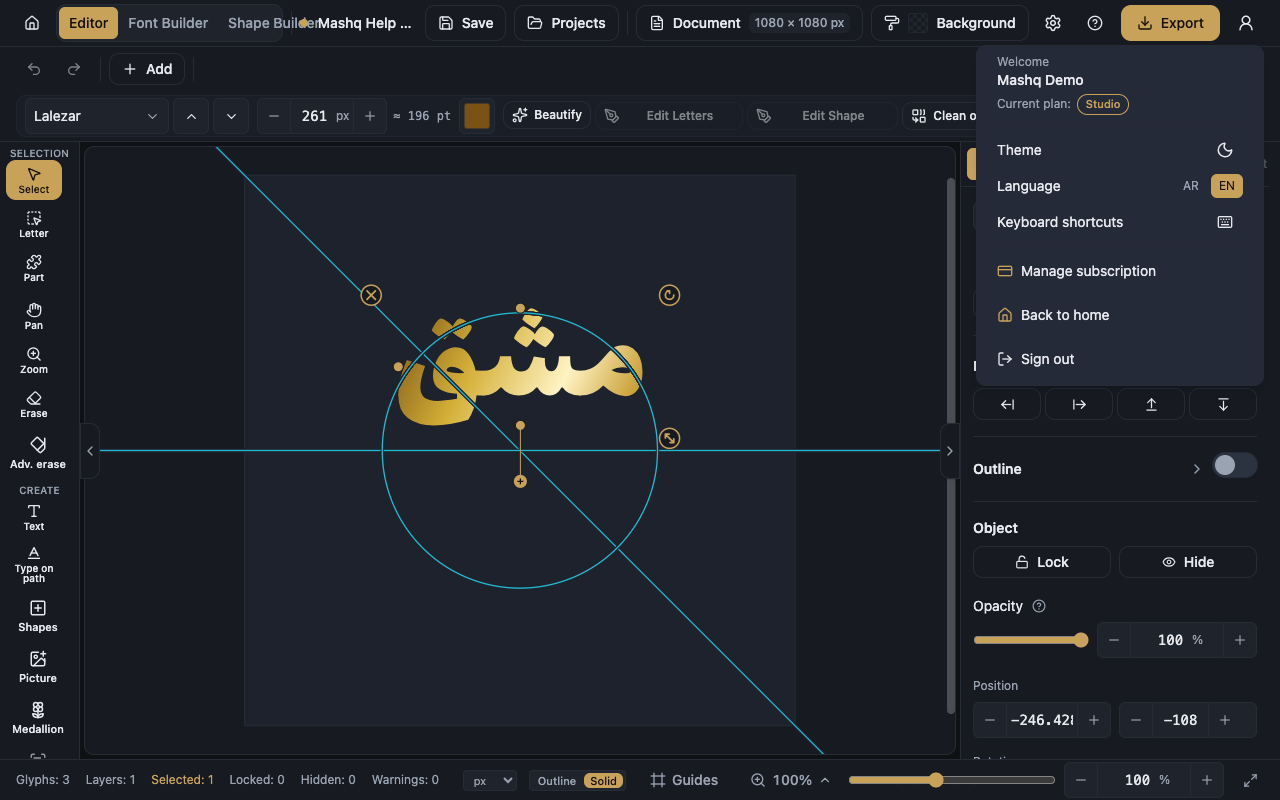
The Language switch is a pair of small buttons carrying the two language codes, ar for Arabic and en for English. The highlighted one is the language you are reading now.
You will find it in the top bar of the home page, and in the menus of the Editor, the Font Builder and the Shape Builder.
Switching keeps you on the same page instead of sending you back to the start. The only thing that changes in the address is the prefix: /ar for Arabic, /en for English.
Arabic lays the interface out right to left and English left to right, so the bars and panels move to the side that suits the language.

Switching the appearance
The Theme button carries a sun or a moon, and one press moves you between the light look and the dark one.
It sits in the home page's top bar as well, and in the account menu inside the Editor and the other tools, so you can change the look in the middle of a job.
The theme only changes the site's interface. Your design's own colours and the artboard background stay exactly as you set them, and the file you export is not affected.
The choice belongs to the device
Your language and theme are kept in the browser on the device where you chose them, not in your account, and they stay there until you clear your browsing data.
So you can read the site in Arabic on your phone and in English on your computer without the two settings fighting each other, and every new browser starts from its own.
If you clear your browsing data or use a private window, the site goes back to its starting look and you choose again.