Kashida and fitting a width
A kashida lengthens the connection between two joined letters. Use it to fill a line to both edges, or to widen a word until it reaches an exact measurement, without changing the shapes of the letters. Kashida works on every plan.
Stretch one connection
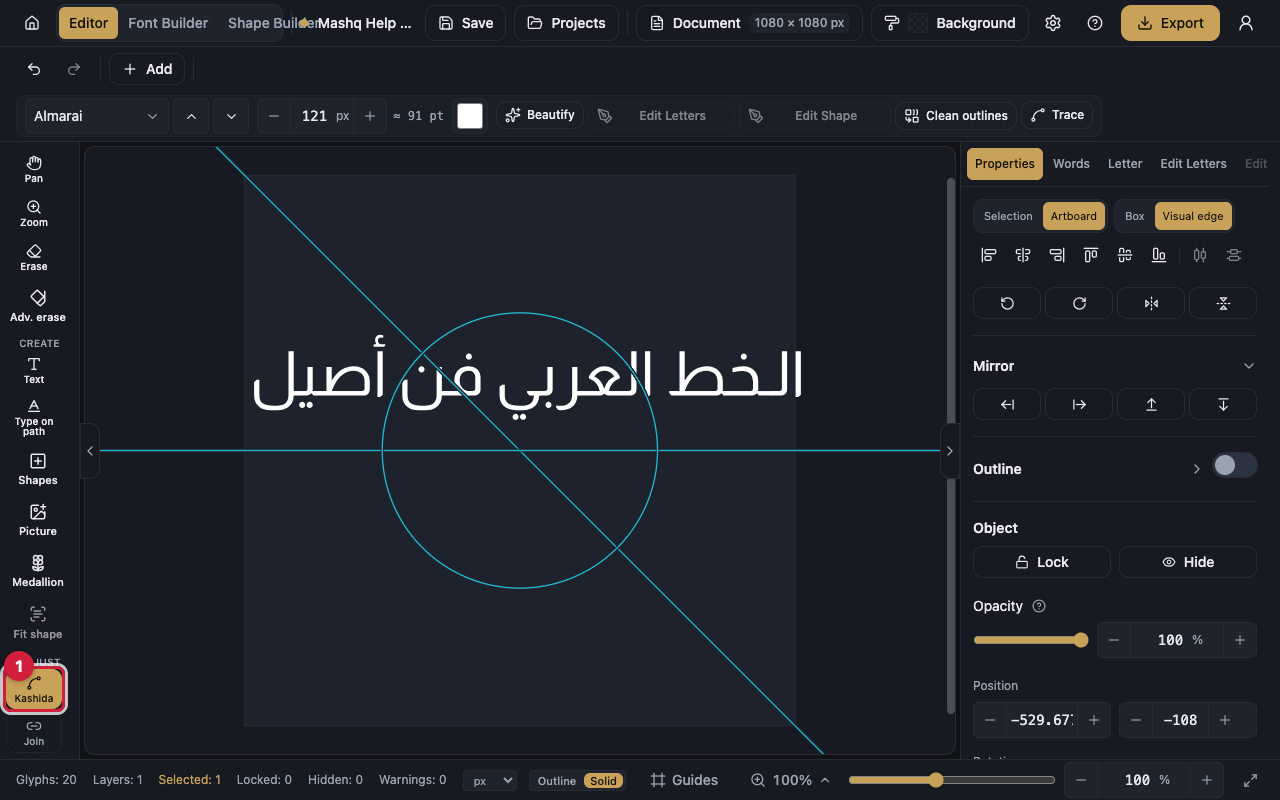
The Kashida tool inserts or edits a kashida at a safe elongation point, which means a place where two letters really do connect.
- Select the text layer.
- Pick the Kashida tool, or press K.
- Click the join between the two letters on the canvas.
- Drag to lengthen or shorten the connection.
Set the length by number
Once an elongation point is selected, Kashida length appears in the Letter panel with the smallest and largest length the font allows. Lengthen or shorten it with the buttons, and Reset to default length undoes your change.
If no elongation point is selected, the editor asks you to pick one first.
Fit the text to a width
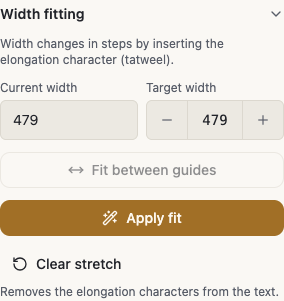
Width fitting, in the Properties panel, stretches or narrows the text until it reaches the width you type, spreading the change across its joins.
Distribution decides how the stretch is shared: Even spreads it across the joins equally, End-weighted puts most of it towards the end of the text.
When the kashidas are fully stretched, the editor tells you the width it reached and stops there.
- Select the text layer.
- Open the Properties panel and its Width fitting section.
- Turn on Auto-insert kashidas so elongation points are added at the safe joins.
- Type a number in Target width and compare it with Current width.
- Choose the Distribution you want.
- Clear stretch puts the text back as it was.
Fit between guides
If you already have a column marked out on the page, you do not need numbers. Put a vertical guide on each side of the text and press Fit between guides, and the text stretches to exactly that gap. Without a guide on both sides, the editor asks you to add them.
Stretch a single word
In the Letter panel, Stretch word lengthens the selected word smoothly. Stretch word (steps) does it by inserting elongation characters instead, so the minus and plus buttons add or remove one step at a time. Reset stretch puts the word back.
When fitting will not work
A kashida only fits between two connecting letters, so text with no joins cannot stretch.
Width fitting works on straight text only. Detach the text from its path first.
A locked layer cannot be fitted until you unlock it.
If the text has no elongation points, add one or turn auto-insert on.
Some font packs have no kashida at all, and some uploaded fonts stretch typed tatweel themselves, so the platform's own length controls and width fitting are not available for them.