Alternate letterforms
One font often draws the same letter in more than one way. Here you pick the drawing you want, either for a whole word or for a single letter, and you can see how well each option connects before you commit.
Word shapes
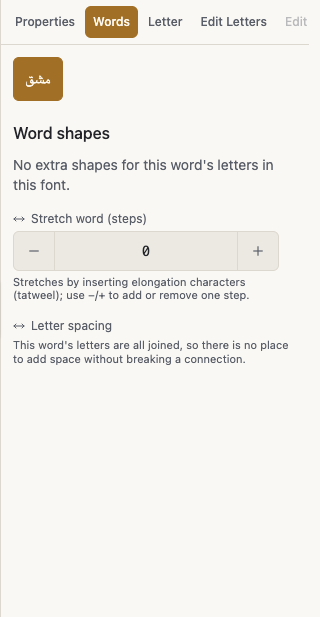
The Words panel shows the shape combinations for a word as thumbnails. Tap one and it lands on the canvas straight away. The one in use carries the current tag, and the font's own shape carries the default tag.
- Select the text layer.
- Open the Words panel.
- Double-click a word on the canvas, or tap a word at the top of the panel.
- Browse Word shapes and tap the one you like.
- Reset to default shape undoes the choice.
Alternates for one letter
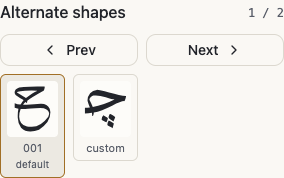
To change a single letter, use the Letter panel. Alternate shapes lists every drawing of that letter in this font, and shows where the current one sits in the set.
- Pick the Letter tool.
- Click the letter on the canvas, or choose it from the letter list in the Letter panel.
- Step through Alternate shapes with Previous shape and Next shape.
- Press Use this alternate on the one you want.
- Reset to default shape brings the font's own drawing back.
Read the join quality
Under each alternate you see good join, fair join or weak join, describing how it meets its neighbour.
A pretty shape is not enough on its own. An alternate with a weak join can leave a gap or a kink where the letters meet, so zoom in on that spot on the canvas before you move on.
When there are no alternates
The editor may tell you that a glyph has only one shape, or that there are no extra shapes for this word's letters in this font. Alternates come from the font itself, so if you want more options, try a different font.
In fonts you uploaded, alternates are sometimes buried inside the file. Scan styles in the Font Builder brings them out.