The Guides panel
Guides are helper lines that never appear in an export, there to line your text and shapes up against. This panel creates a guide, sets its kind and its position by number, locks it, deletes it, and aligns it to the page. Everything here works on the Free plan.
Creating a guide
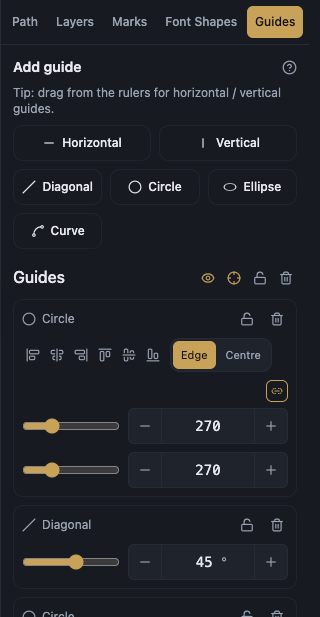
Add horizontal guide and Add vertical guide draw a straight line across the page. The panel also points out a faster way: Tip: drag from the rulers for horizontal / vertical guides. Pull from the edge of a ruler onto the canvas.
The other kinds come from the Add guide buttons at the top of the panel. The six kinds are Horizontal, Vertical, Diagonal, Circle, Ellipse and Curve.
A Curve guide is shaped on the canvas: drag the line itself to move it, and drag its square ends and round handles to change how it bends.
Placing a guide by number
X position and Y position set where the guide sits on the page. Each field has Increase and Decrease buttons for a small, precise step.
Angle appears for a diagonal guide and is measured in degrees: 45° leans the line down to the right, a higher angle turns it clockwise, and a negative angle turns it counter-clockwise.
Width radius and Height radius appear for a circle or an ellipse. Between them sits Link radii (keep proportions), which grows both together so the shape stays round. Press it to get Unlink radii (free proportions) and move each radius on its own.
Aligning a guide to the page
Align this guide to the page is a row of buttons that snaps the guide to a page edge or to the middle without any arithmetic: Align left, Centre across, Align right, Align top, Centre down and Align bottom.
How it meets the edge settles what alignment means for a guide that has width, such as a circle. Edge makes the guide's outer edge touch the page edge, so it stays fully inside. Centre puts the guide's centre on the page edge, so it straddles it.
Locking and deleting
Lock guide pins a guide so it cannot be moved or deleted, and the button becomes Unlock guide. Try to delete a locked guide and the panel answers Unlock to delete.
Delete guide removes that one guide. Clear all removes every guide in the project at once.
Guide actions is the menu that gathers these commands on each row of the Guides list.
When the project has no guides, the panel says No guides yet.
Making objects stick to guides
On their own, guides only help the eye. To make objects actually snap to them, turn on the guide magnet in the bottom bar, which is the same switch as Snap to guides in the view menu.
Guides help is a button inside the panel that opens a short summary of all of this: dragging from the rulers, what the angle means on a diagonal, the proportion link on circles and ellipses, reshaping a curve, what locking does, and where the magnet lives.