The Projects dialog
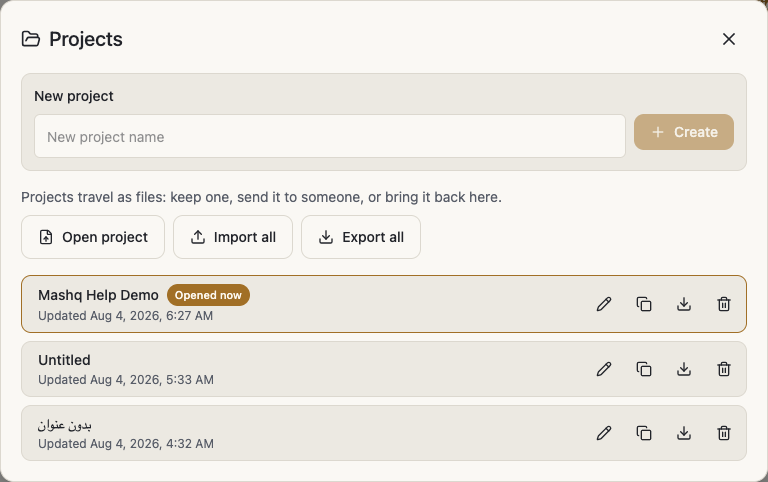
The Projects button in the app bar opens the list of your work. From here you create, open, rename, duplicate and delete a project, and move projects out to files and back again. How many projects you can keep and how big each one may be follow your plan, which is set out in the pricing section on the home page.
The list
The window is titled Projects, with a welcome line under it inviting you to open a project or create one to start, because your work saves automatically.
Each row is one project, with Updated and its date so you can spot the most recent. The project you have open right now is marked Opened now.
Open project loads that project into the editor in place of the current one.
With nothing saved yet, the window says there are no projects yet, and invites you to start a new one.
Creating and naming projects
New project opens the New project name field, and Create makes the project and opens it. If you have reached the number of projects your plan allows, creating is refused and the app tells you so.
Rename project changes the name from the list. You can also click the project's name in the app bar, where it appears after the word Editing. A project you have not named yet shows as Untitled.
Duplicate project makes a full copy called Copy of followed by the original name, so you can try an idea without touching the original. The copy is a project in its own right and counts towards your plan's project count.
Delete project asks Delete? and waits for Yes before it acts. Deleting is final, so download a copy first if you are unsure.
Saving
Your work saves by itself a moment after each edit, so normally there is nothing to press.
Save writes it now without waiting, and it has the usual keyboard shortcut for saving.
Unsaved changes means the last edit has not reached the server yet; Saved means it has.
If a save fails, the app says it could not save your changes, that they are still on screen, and asks you to try again. What is on your screen is intact; only the sending went wrong.
You may also see Autosave paused when you do not have permission to save this project, together with Save as copy, which turns it into your own copy that you can save freely.
Moving projects as files
The transfer row at the bottom explains itself: Projects travel as files: keep one, send it to someone, or bring it back here.
Open project picks one project file. It comes in and opens right away.
Import all takes a zip of projects, or several project files at once, and shows progress while they come in.
Export all downloads every project you have as one zip. With nothing to send it says You have no projects to download yet.
Download project downloads this one project as a single file. If the project is gone or cannot be read, the app says so rather than failing quietly.
Importing counts towards the project count and the storage your plan allows.
The report
After every import or export a report appears under the heading What happened. It says how many projects came in and offers Open followed by a project's name so you can go straight to it. Done closes the report.
Left out lists the import files that did not make it, and why for each one: it is not a project file, it was made by a newer version of the app and you need to update, the project inside is damaged, the file could not be read, it is too big to come in with the others so bring it in on its own, there were too many projects at once so bring the rest in after, or your plan has no room for more projects.
Not in the download lists the projects left out of an export: either they could not be read, or they are too big to go with the others and need downloading on their own.
Fonts you don't have is a warning of its own after an import. The project came in and opens, but it uses a font that is not in your library, and the font is named for you. The letters will look right once you add it.