The Export design dialog
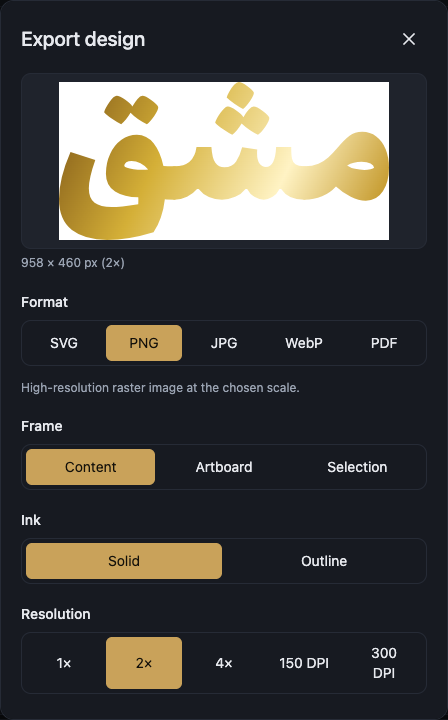
Export in the app bar takes your work out of the editor: in one tap from the quick menu, or through the Export design dialog where you set every detail and see the result before you download it.
The quick export menu
More options… sits first, above a divider: it is the way into every setting the one-click items below decide for you, and it opens the full dialog described below.
SVG writes a layered vector file where each object is an editable layer in a vector drawing program. It comes with a paid plan.
PNG (1×) and PNG (2×) are ordinary-resolution raster images and work on the Free plan. PNG (transparent, 2×) is the same with no page fill, also on the Free plan.
PNG (4×) is a print-resolution raster image. It is print output, which needs a paid plan.
PDF is a true vector PDF where paths stay crisp and selectable, and it comes with a paid plan.
Copy SVG puts the vector code on your clipboard, page background and colours included, so you can paste it straight into another program. It works on the Free plan.
Every item in the quick menu matches the screen and frames the full page.
Export for cutting (DXF)… sits below a second divider and opens the laser and CNC panel, which has its own page in this reference.
What each plan includes is listed in the pricing section on the home page.
Format
Format offers five outputs, each with a line in the dialog explaining it.
SVG is a layered vector: each object is an editable layer in Illustrator or Inkscape.
PNG is a high-resolution raster image at the scale you choose, and it supports transparency.
JPG is a small file for sharing, with no transparency.
WebP is a small file for sharing, with transparency.
PDF is a true vector PDF where paths stay crisp and selectable.
The two vector formats, SVG and PDF, come with a paid plan. Ordinary-resolution raster images work on the Free plan.
Frame: what goes in the file
Content crops the file to what you actually drew, so the empty parts of the page stay out of it.
Artboard exports the whole page at its own size, including the space around the work.
Selection exports only what is selected. With nothing selected, the dialog asks you to select something on the canvas first.
Resolution and quality
Resolution sets how dense a raster image is. Print densities are offered in dots per inch, and those higher densities are print output, which needs a paid plan.
Quality appears for JPG and WebP only, trading picture clarity against file size.
Output size shows the real dimensions of the resulting file before you download it, so you can see when you have asked for more than you need.
If you ask for more than the browser can produce, a warning says the size is too large to make as a picture and suggests a smaller Resolution, or switching to SVG or PDF, which have no size limit.
Background, spacing and ink
Background has three settings. As on screen, the default, matches the canvas exactly, including the page colour the current interface theme shows when no page background is set. White page (print) is a plain white page, the old default. Transparent drops the page fill. JPG carries no transparency, so choosing Transparent for it still produces a white page, and its preview shows no checkerboard.
Margin is empty space added around the artwork, and it stays in the file. Use it to give the work room to breathe, or to keep it clear of a frame. At 0 the file is exactly the artwork and nothing more.
Bleed is for printing only: it adds extra artwork past the edge, so that when the printer trims the paper and the cut lands slightly off, there is no white sliver at the border. The trimmed result is still your original size. Leave it at 0 unless a print shop asked for it. It is print output, which needs a paid plan.
Ink settles how the letters come out: Solid draws them filled, Outline draws them hollow with only their outer line.
Options for a print shop
Print black and Crop marks appear only for PDF with Background set to White page (print).
Print black outputs full-strength black for printing so fine strokes stay sharp. It is print output, which needs a paid plan.
Crop marks are short corner lines showing a print shop where to cut, and they are print output too.
Print opens your design as a PDF in a new tab, ready to print at its real size, and it is also print output on a paid plan.
Name, preview and download
File name is what the download will be called. Give it a name you will recognise later instead of the default.
Preview shows the real result with the current settings, and it refreshes with every change you make. Tashkeel marks you have hidden with the view toggle stay out of the preview and out of the exported file, just as they stay out of printing and Copy SVG.
Download saves the file to your device.
Messages you may see
A Pattern is left out of a PDF, and the colour or gradient underneath it comes out instead. If the motif is part of the design, choose SVG or PNG.
If an uploaded font is still loading, the app asks you to try again in a moment, because exporting needs the whole font.
If the export fails for another reason, it says Export failed. Please try again.