Upload your own font
You can turn a font file you have into a font you use in the editor and edit letter by letter. This guide covers the whole upload: which file works, the joining style question, the import report, and saving it into your library.
Before you upload
Only upload fonts you are licensed to use.
Use a full desktop font file ending in .ttf or .otf. Web font files usually miss letters, so they are not a good source here.
How many fonts you can upload depends on your plan. The pricing section on the home page has the current figures.
The upload steps
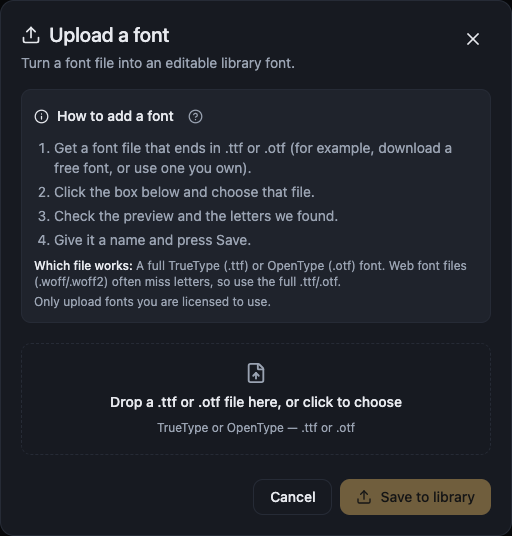
Uploading happens in the Font Builder, in Library mode, through the Upload font tile.
- Open the Font Builder, then Library.
- Press Upload font.
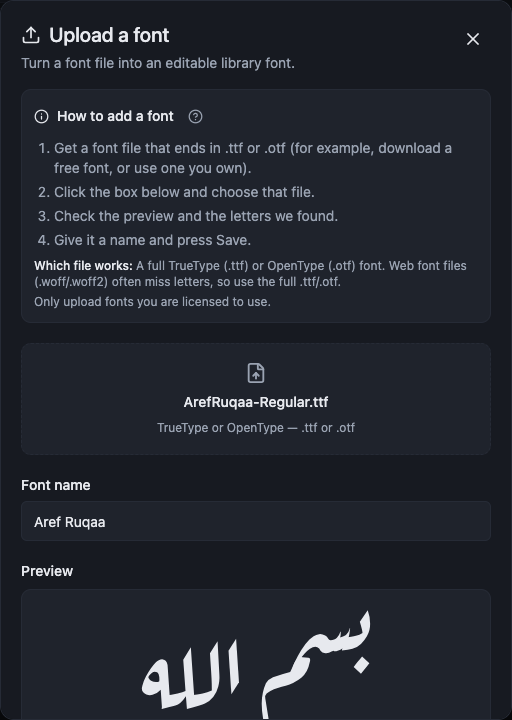
- Drop your .ttf or .otf file on the box, or click the box and choose the file.
- Wait while the letters are read, then check the Preview and What we found.
- Check the Joining style and flip it if the preview looks wrong.
- Type a Font name and press Save to library.
Joining style: Flat or Cascading
Flat (Naskh-style) keeps the letters on a straight line, which is what the app draws most accurately.
Cascading (Ruqʿah / Nastaliq-style) makes letters step down as they join.
The editor picks its best guess for your file and you flip it if the preview looks wrong. You can change it on the font at any time later.
Read the report before you save
What we found lists how many letters, shapes, joined pairs and tashkeel marks were read out of the file. It is the quickest way to confirm you picked the right file.
You may see a warning that core letters are missing, or that the font holds only a few Arabic letters. In that case expect some words to render incompletely.
If the font draws whole words rather than single letters it will still work when you type, but editing one letter at a time may be limited.
When the file is refused
If the file is not a .ttf or .otf, choose a real TrueType or OpenType font file.
A file that is too large is refused. Pick a smaller one.
If you are told the font has no Unicode Arabic letters, it probably uses a non-standard encoding. Try a Unicode Arabic font instead.
Sometimes the letters are found but no shapes can be read out of them. The font stores its letters in a way the app cannot open yet, so try another file.
After the font is in your library
The font appears under Fonts with the Editable badge, and in the Font pack list inside the editor.
Scan styles looks inside the font for hidden letter styles and offers them to you as alternate shapes.
Clean up font lists the letters that look like import junk or are uncommon, with the junk pre-selected for removal. Review the list and uncheck anything you want to keep, because removal cannot be undone.