Shapes and pictures
Besides text, the editor takes two other kinds of layer: vector shapes you draw and colour, and pictures you place from your device. Both behave like any other layer, so they move, resize and rotate the same way.
Inserting a shape
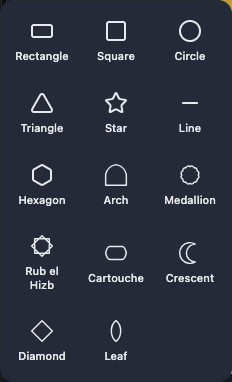
The Shapes menu holds fourteen shapes: Rectangle, Square, Circle, Triangle, Star, Line, Hexagon, Arch, Medallion, Rub el Hizb, Cartouche, Crescent, Diamond and Leaf.
You reach it from the tool rail on a computer, from the bottom tool strip on a phone, and from Add shape in the Add menu.
A shape's appearance
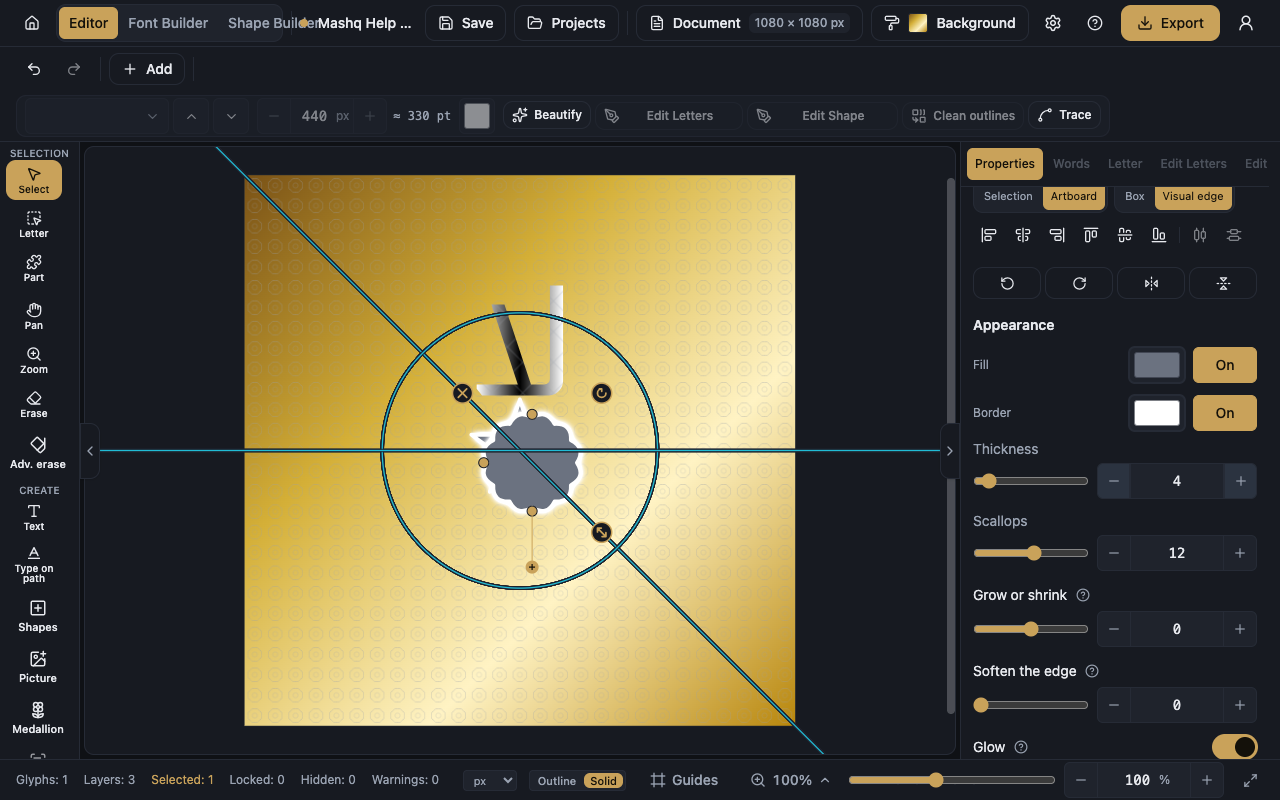
Every shape has two independent paints under Appearance, Fill and Border, and each opens the full paint pop-up. Thickness sets how heavy the border is.
Some shapes bring dials of their own, such as Points, Scallops, Pointiness and, on the Line shape, Curve, which bows the straight line into an arc in either direction, plus Wave depth and Waves, which ripple the line into even waves on top of that arc. Which ones appear depends on the shape you inserted.
A Line also carries a small hollow ring you can drag on the canvas, sitting right on the curve itself: it bends the line the same way the Curve dial does, in one motion, with Escape to cancel mid-drag. It takes the place of the two squash dots a straight line would otherwise show at its top and bottom, since a flat line has nothing there to squash.
The edge and the glow
Grow or shrink moves the shape's edge outward or inward while it stays crisp. The fill and the border move together and the shape's own box stays where it is.
Soften the edge melts the edge outward, so it fades away instead of stopping on a sharp line.
Glow is a soft halo spreading out of the outer edge, and it does not need a border: with no border the fill's own edge glows. Glow size, Glow opacity and Glow colour control it.
Placing a shape on the page
Fit shape to artboard makes the shape fill the page, in the middle of it. A rectangle stretches to the edges, and every other shape keeps its proportions and grows until it touches.
Center shape in artboard puts it in the middle at the size it already is.
Combining two shapes
Combine shapes gives you two operations. Merge melts the selected shapes into one clean shape and removes the lines where they overlap for real. Cut front makes the shapes in front bite into the bottom shape and then disappear.
Break apart goes the other way: it splits an outline layer into its separate parts, and each part keeps its own openings.
Placing a picture
The Picture tool puts an image from your device on the canvas, where it moves and resizes like any layer.
Fit artboard to picture makes the page the same shape and size as the picture and lays the picture back over it exactly. It is the quickest start when you are working from an existing image.
Choose an SVG file instead of a photo and it comes in as editable vector shapes, not a picture. A file that is too complex for that is offered as an ordinary picture instead.
Worth knowing
Your plan sets the biggest picture you may add and the total storage you have. The Pricing section on the home page shows what each plan includes today.
When a picture is over the limit, the app offers Make it smaller for me or Choose another picture. When the file type cannot be used as it is, the app offers to convert it. If it is still too big even at its smallest, you have to choose a smaller one.
Combine shapes works on shapes and outline pieces only. Convert text to outlines first, because pictures, lines and locked layers cannot combine, and shapes that do not overlap leave nothing to cut.
A shape needs at least one of Fill or Border, so you cannot switch both off.