Wrap text into lines
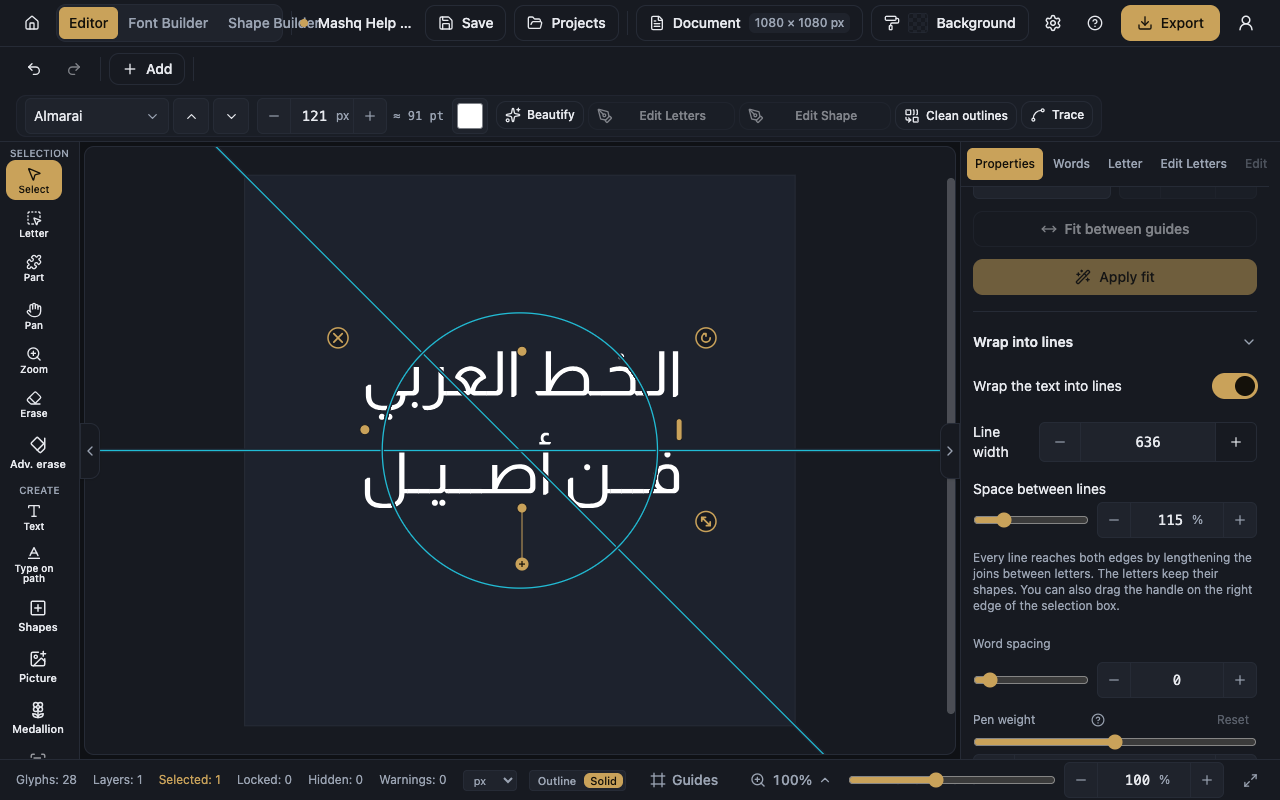
Wrapping turns a long sentence into a block of even lines. Every line reaches both edges by lengthening the joins between letters, and the letters keep their shapes.
Wrap from the Properties panel
The Wrap into lines section of the Properties panel holds the switch and two settings: Line width decides how far a line runs, and Space between lines sets the gap from one line to the next.
- Select the text layer.
- Open the Properties panel and its Wrap into lines section.
- Turn on Wrap the text into lines.
- Adjust Line width until you like the number of lines.
- Adjust Space between lines.
Wrap by dragging on the canvas
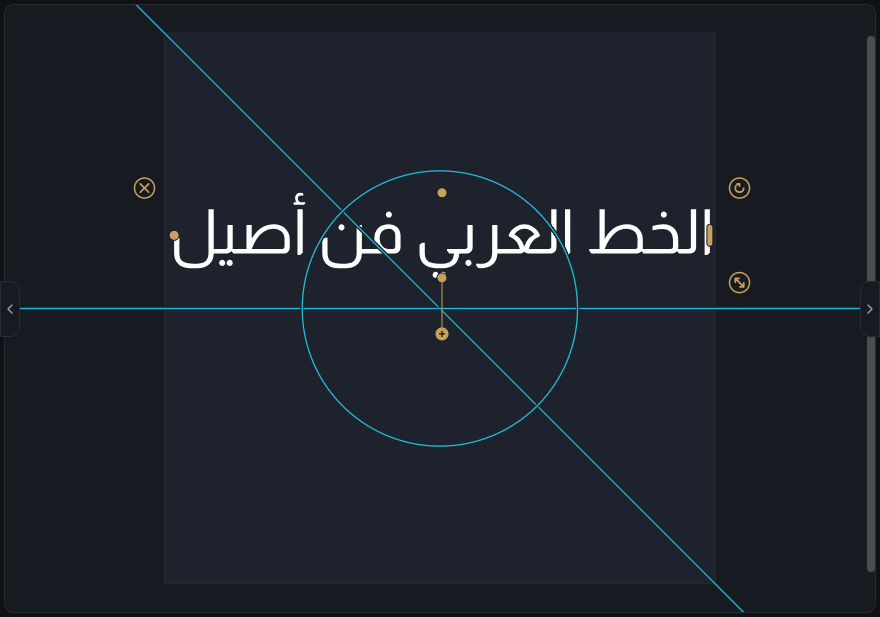
You do not need the side panel to set the width. There is a handle on the right edge of the selection box: drag it and the text wraps. Drag inwards for a narrower line and more of them, drag outwards until the text is a single line again.
How the lines fill out
The editor does not push the letters apart to reach the edge. It lengthens the connections between them, the way a calligrapher would. That is why every letter keeps its own shape, and the text stays text you can keep editing after it is wrapped.
When wrapping is refused
If the layer is locked, unlock it first.
Text on a curve or fitted inside a shape is already arranged. Remove the curve or the shape fit, then wrap it.
If there is only one word, there is nothing to break onto a new line.
The editor sometimes waits for the text's font to finish loading so it can measure the line widths. Give it a moment.
What is unavailable while text is wrapped
Wrapped text cannot also follow a path, so turn Wrap off first if you want a path.
Part editing is off as well. Drag the wrap handle back out to one line, edit the parts, then wrap it again.