The Marks and Font Shapes panels
Two neighbouring tabs in the sidebar with the same job: dropping a ready-made piece onto the page with one tap. Marks & Dots gives you diacritics and dots; Font Shapes gives you decorative pieces. Both work on the Free plan.
Marks & Dots
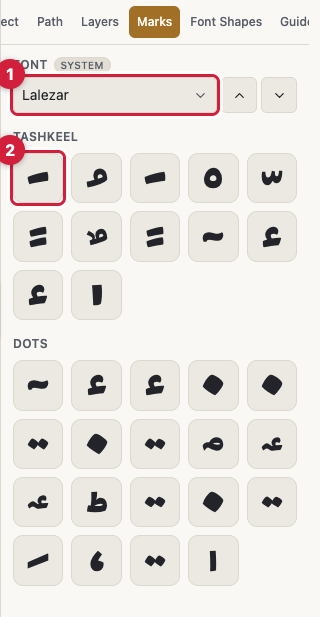
The panel's heading is Marks & Dots. It is a gallery of the small pieces a font draws: the harakat and the dots.
Font picks which font the pieces come from. The pieces are drawn inside the font itself, so changing the font changes how a mark looks.
Previous font and Next font step through your fonts without opening the list, and the gallery refreshes with each step.
Tashkeel and Dots are the two groups in the gallery. The first holds marks such as fatha, damma, kasra and shadda; the second holds the dots that distinguish one letter from another.
Every tile is a button reading Insert followed by the piece's name. Tapping it puts the piece on the canvas as its own layer, not attached to any letter. Move it, resize it, turn it and paint it like any other layer.
If the chosen font carries no such pieces, the panel says This font has no marks or This font has no dots. Switch fonts to see something.
A mark you drop here is a different thing from a harakat attached to a letter inside a word. Those are adjusted in the Letter panel after you click one on the canvas.
Font Shapes
Font Shapes is the gallery of decorative pieces: dividers, corners, frames and geometric units that you drew or uploaded into a shapes font.
Font picks which shapes font is on show. You can keep several shapes fonts, each with its own gallery.
Insert followed by the piece's name puts the piece on the canvas as a fully editable outline. Paint it, give it a border and a glow, or move its points in the Edit Font Shape and Outline panel.
If the chosen font is empty the panel says This font has no shapes, and if you have no shapes font at all it says No shapes fonts yet. In that case go to the Shape Builder to create a shapes font or upload one.